
Updating the Machine
This machine is shipped with the latest version of firmware installed. To keep this machine up to date, check for the firmware updates occasionally, and update the firmware when needed.
Items to prepare |
|
In the upper-right corner of the Artspira Home screen, tap
 .
.Tap your machine’s model name.
A screen with information for the connected machine appears.
Tap [Software Version].
If an update is available, follow the on-screen instructions to update the machine.
- Updating via Bluetooth takes longer than updating via a USB flash drive, so we recommend updating via a USB flash drive.
- When updating via Bluetooth, tap [Update via Bluetooth] in the [Version Update] screen, and then follow the in-app instructions to update the machine. If the app and machine are not connected, updates cannot be performed via Bluetooth.
- The guides and information listed under “Manuals” on Brother support website (https://s.brother/cmqag/) may also be updated as well. Check this website after updating the firmware of this machine.
Go to the Brother support website (https://s.brother/cuqag/), and then save the latest update file to a USB flash drive.
Use an empty USB flash drive and do not store any data other than the update file on the USB flash drive. If there are other files on the flash drive, the machine may malfunction or stop operating correctly.Turn on the machine and hold down
 (Feed Button) and
  (Power Button) at the same time for five seconds to switch to update mode.
When ready, the machine beeps three times, and the LED on
 (Start/Stop Button) changes from green to orange.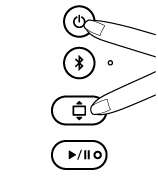
Insert the USB flash drive (containing the update file) into the USB port on the back of the machine.
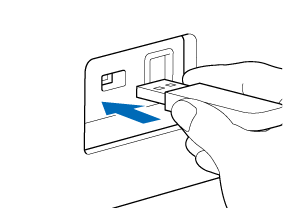 This machine is incompatible with a USB hub. Insert a USB flash drive directly into the USB port.
Press
(Start/Stop Button).When the update begins, the LED on the Start/Stop button flashes green, red, and orange, in that order.
- Do not turn off the machine while it is being updated.
- Do not remove the USB flash drive while the machine is being updated.
- If the update does not start, make sure that the correct update file is in the USB flash drive and that no other files are included.
The machine will beep once and the LED on the Start/Stop button lights up in orange and starts overwriting the file.
When the update is finished, the machine beeps and automatically restarts.
If the update fails, refer to the following link for the solutions.