
Loading Your Material
When cutting material without using a mat, follow these steps:
Before starting your project, we recommend performing a test cut on the material you are using.
Set the mode change lever (on the left side of the machine) to the ▼ position.
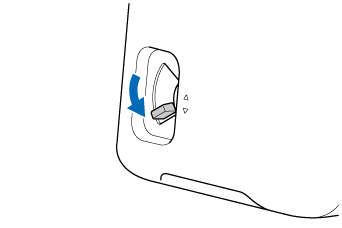
For drawing, set the mode change lever (on the left side of the machine) to the ▲ position.
Align the material to the arrow in the left corner (1) and insert the material under the feed rollers.
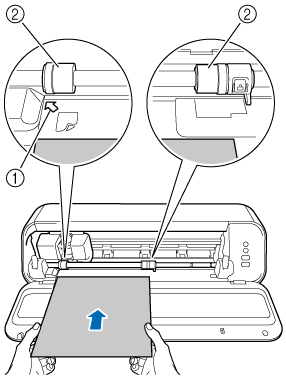
- Arrow for aligning material
- Feed roller
When cutting material that is 12" (305 mm) wide and has a curled leading edge, use the included Feed Supporter to help feed the material. For material of any other size, use a cutting mat.
While holding the material gently in position, press
 (Feed Button). Let the material slide from your grip as the machine feeds it into the correct position.
When the material is in the correct position, it is ready for cutting or drawing.
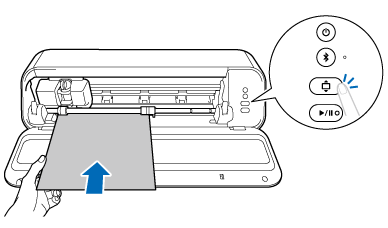 IMPORTANTDo not forcefully push or pull the material while it is being fed, or you may damage the feed rollers.
Materials with a non-slip surface may become attached to the feed rollers during feeding and may not feed correctly. If the material does not feed correctly or becomes jammed, use a cutting mat to cut it.
Press
 (Start/Stop Button).
Before cutting or drawing begins, the material or mat is fed backward and forward as the machine checks that the material size is sufficient for the pattern size.
If the LED on the Start/Stop button is off, data transfer from the app is not finished.When cutting or drawing is finished, press
(Feed Button) to eject the material.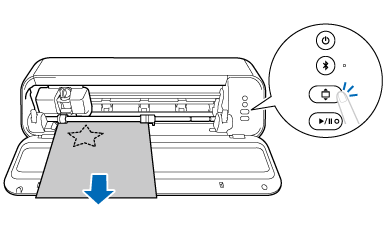 IMPORTANTDo not forcefully push or pull the material while it is being ejected, or you may damage the feed rollers.
For the procedure using a mat, refer to the following link: