
Setting Up the Machine
Connecting the Power Cord
Connect the power cord to the machine.
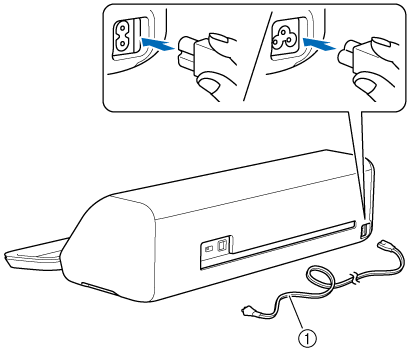
- Power cord
Plug the power cord into an electrical outlet.
Do not block the slot in the back of the machine with the power cord.
Pairing the Machine with a Mobile Device
Before you begin: |
|
In the upper-right corner of the Artspira Home screen, tap
 .
.In the Machine Settings screen, under [Cutting Machine], tap [Connect] > [Bluetooth model].
If [Bluetooth model] does not appear on your screen, update the Artspira app to the latest version.Turn on the machine by pressing and holding
 (Power Button) until the LED on
  (Start/Stop Button) lights up.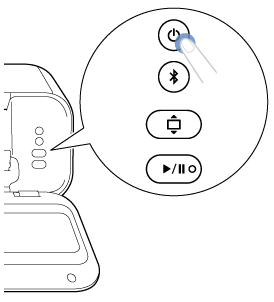
 CAUTIONKeep your hands away from the carriage when you turn the machine on, as the carriage will automatically move to its starting position.
If the machine is not used for a certain period of time, it automatically turns off. Use the following link for more information on setting the time out period:
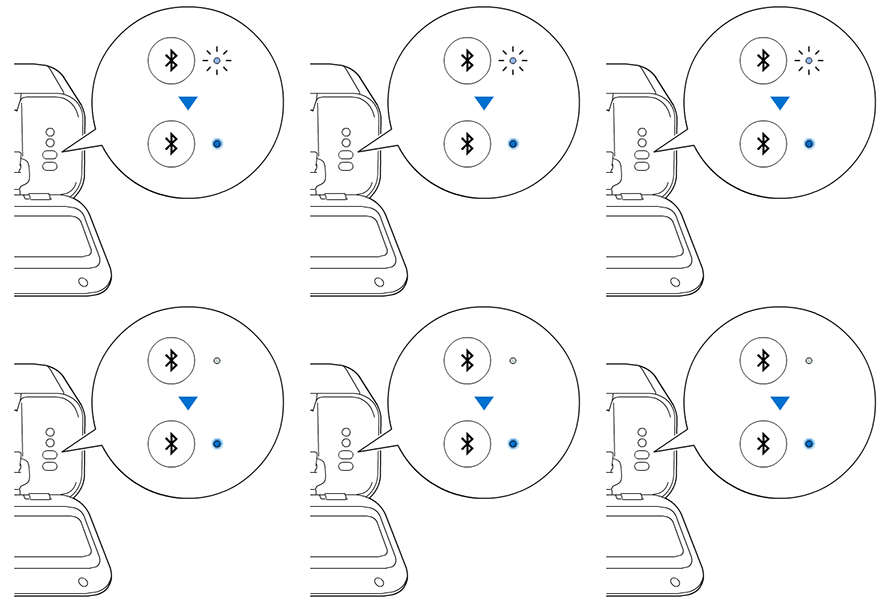
Make sure that the machine’s Bluetooth LED is flashing, and then press and hold down
 (Bluetooth Button) until the machine beeps. This puts the machine in device discovery mode.
The machine begins searching for devices.
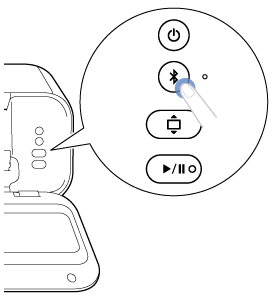
When a list of machines appears in Artspira, tap the machine you want.
The machine name appears with 4-digit number. This number is the last four digits of the serial number of the machine. The machine’s serial number can be found on the label on the back of the machine.
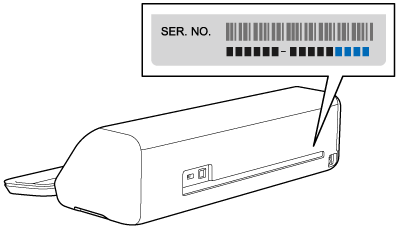
Once pairing is successful, the Bluetooth LED stops flashing and remains lit.
- If your mobile device is already paired with another Bluetooth cutting machine, disconnect that machine, and then try pairing with this machine.
- If your mobile device is already paired with this machine, you can also pair with a Bluetooth-ready Brother embroidery machine.
- To pair your machine with a different mobile device, put the machine into device discovery mode (see step 4), and then pair it with the other mobile device.