
Transferring Data Created with Artspira
When Creating Data Using Designs in Artspira
On the Artspira Home screen, select the desired cutting data, and then tap the [Create] button.
To edit the data, tap the object and select from the options that appear on the screen.
When editing is finished, tap [Done].
To save your data, tap [Save]. You can pull up the saved data by tapping
 [My Creations].
Tap [Transfer], and then follow the in-app instructions to operate the machine.
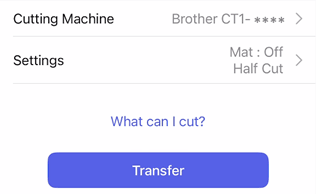
- To change settings like the cutting type you want or if a mat is being used, tap [Settings], and then change the settings.
- To change the pressure or speed, tap [Settings], and then tap [Machine Settings].
After all app instructions have been completed, tap [Done].
When the transfer is complete, the LED on
 (Start/Stop Button) in the machine’s operation panel flashes in green.
For details on the operations appears on the Artspira App, refer to the following:
Installing the Holder Into the Machine
Press
(Start/Stop Button).When cutting or drawing is finished, press
 (Feed Button) to eject the material or mat.
When Creating Original Data
On the Artspira Home screen, tap
 [New], and then tap the [Cutting] tab.
Select the data design tool you want to use, create your data, and tap [Done] when finished.
To save your data, tap [Save]. You can pull up the saved data by tapping
[My Creations].Tap [Transfer], and then follow the in-app instructions to operate the machine.
- To change settings like the cutting type you want or if a mat is being used, tap [Settings], and then change the settings.
- To change the pressure or speed, tap [Settings], and then tap [Machine Settings].
After all app instructions have been completed, tap [Done] to transfer the data.
When the transfer is complete, the LED on
(Start/Stop Button) in the machine’s operation panel flashes in green.For details on the operations appears on the Artspira App, refer to the following:
Installing the Holder Into the Machine
Press
(Start/Stop Button).When cutting or drawing is finished, press
(Feed Button) to eject the material or mat.