
Overview of Alignment Cutting Function
When using the [Design Editor] or [Sticker Maker] tool in Artspira, you can combine a print image with cutting data. The registration marks will be added to the printing data and the machine will detect the cutting position.
- This function is compatible only with A4/Letter size material.
- Prepare a home printer (inkjet recommended) that is compatible with the default printing service of your mobile device.
- Print using print settings appropriate for the material being used. For details on specifying printer settings, refer to the printer’s manual.
- While cutting, make sure that the machine is not exposed to strong, direct light. If the registration marks cannot be detected due to interference with the sensor detecting the marks, cutting may not be performed properly.
- Make sure that the app and the machine are paired.
Materials That Can Be Used
Cutting performance is affected by the type of material you use. For best cutting results, we recommend using materials with a matte finish.
The characteristics of the following materials may make it difficult to detect the registration marks:
- Dark-colored material
- Shiny or light-reflective material
- Material with an intricate and detailed pattern
- Transparent material
- Rough material
- Creased material
About Registration Marks
Registration marks are automatically added to the print data in the four corners, according to the material size.
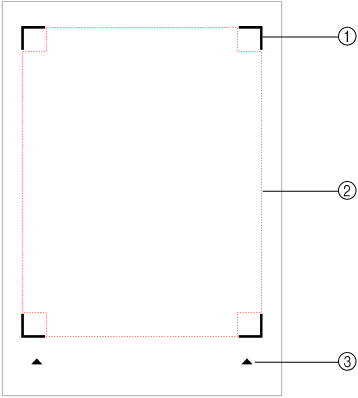
- Registration mark
- Data placement area
- Material feeding direction (Simple Matless Cutting only)
About Your Printout
If the registration marks are not printed correctly, they may not be detected and cutting performance may be affected.
Follow these guidelines when printing to confirm that there is no issue with the print results:
- Print at actual size, using material of the same size as specified in Artspira.
- Print with the high print quality setting.
- If there are smudges near the registration marks, try printing again on a new sheet of material.
- If the printed registration marks are smeared or the ink is bleeding, or if the registration marks are incomplete, check the condition of the printer, and then try printing again.