
Drawing Function
By changing the data process to [Draw] in the editing screen, you can convert a cutting line to a drawing line and draw on your favorite material using the pens you want.
To use the machine’s drawing function, use the Universal Pen Holder (CAUNIPHL1) or Small Barrel Pen Holder (CAUNIPHL2). These optional accessories are sold separately.
For information on optional accessories, refer to the Brother support website (https://s.brother/ccqag/).
To draw using design content from Artspira:
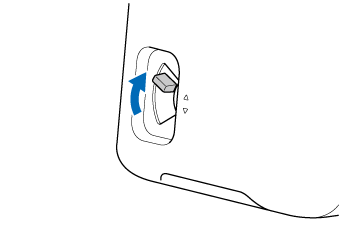
Set the mode change lever (on the left side of the machine) to the ▲ position.
Go to Artspira’s Home screen, select a cutting design you want, and then tap [Create].
In the editing screen, tap the pattern.
To draw only a part of a design that contains multiple parts, tap [Ungroup] to separate the parts.
From the drop-down list, tap [Draw].
If you are combining multiple parts of different designs, you must set the processing method separately for each part.
When finished, tap [Done] to display the Preview screen.
If necessary, tap [Save] to save the data in [My Creations].
Tap [Transfer] to transfer the data to the machine.
When you create a design that includes cutting data, transfer the data to the machine by following the order of the tabs at the top of the screen.
Install the pen holder into the machine.
For installation instructions, refer to the manual included with the pen holder.
Adjust the position of the feed roller, and then load the material into the machine.
Press
 (Start/Stop Button) to start drawing.
When drawing is finished, press
 (Feed Button) to eject the material or mat.