
Cutting Created Data
Preparation: |
|
Tap
 [New] in the Artspira Home screen > [Cutting] tab.
Select [Sticker Maker] in the menu, and then select the material size in the screen that appears.
Select the sticker type, and then tap [Done]. (Sticker Types)
The editing screen appears.
Select the menu to retrieve the data from the menu at the bottom of the screen.
Edit the data if necessary, and then tap [Done].
To save your data, tap [Save]. You can pull up the saved data by tapping
 [My Creations].
When the preview screen appears, tap [Print].
The mobile device's print options appear. Select the option you want, and then print.
Confirm the feeding direction of the printed material, and then load the material into the machine.
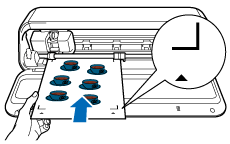
After printing, the cutting preview screen appears. Tap [Transfer] to transfer the cutting data to the machine.
The available cut types and the screen that appears differ depending on the selected sticker type.
Follow the in-app instructions to cut the material.
If [Sticker Half Cut with Easy Peel] is selected, two cutting operations are performed: Half Cut and Perforation Cut. Do not eject the material until all cutting is finished.
When finished, press
 (Feed Button) to eject the material.