
Selecting Embroidery Patterns
Touch the category key and pattern key you want to embroider.
Embroidery patterns built in the machine differ depending on the model.
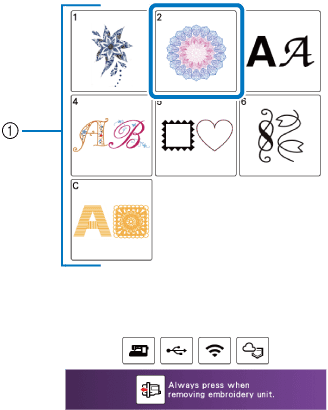
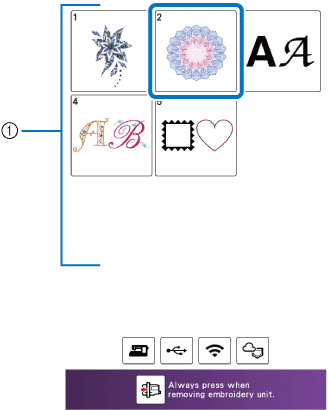

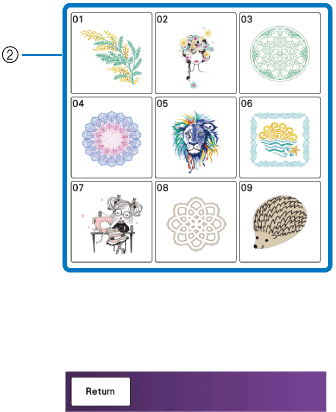
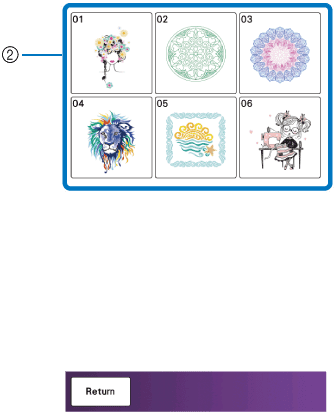
- Pattern category key
- Pattern type/pattern selection key
Select a pattern.
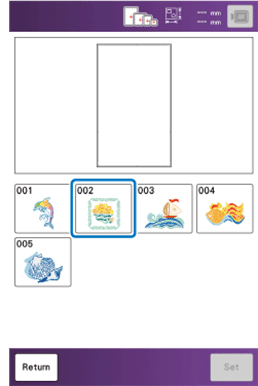
Touch [Return] to return to the previous screen.
- The selected pattern is displayed.
Touch [Set] to set the pattern.
- Available frame options are displayed on the screen.
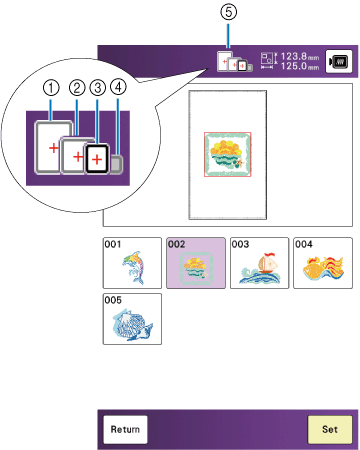
- 360 mm × 200 mm (approx. 14 inches × 8 inches)
- 200 mm × 200 mm (approx. 8 inches × 8 inches)
- 180 mm × 130 mm (approx. 7 inches × 5 inches)
- 100 mm × 100 mm (approx. 4 inches × 4 inches)
- Available frame options
White: Can be used
Gray: Cannot be used
- The pattern is designated with a red box around it on the edit screen.
Touch [Edit] to edit the selected pattern.
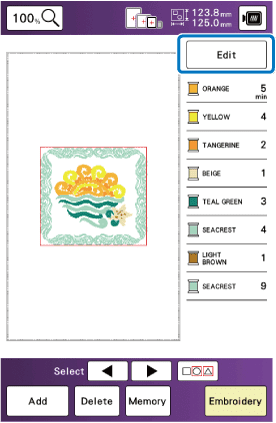
Touch [Embroidery].
- The embroidery screen appears.
Touch [Layout] to edit the pattern before embroidering. (Viewing the Embroidery Screen)
To return to the edit screen, touch [Return].
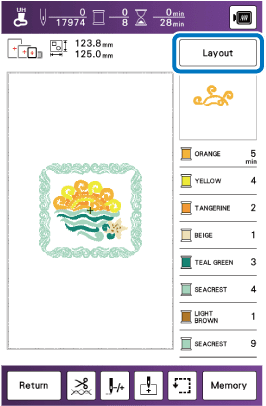
Start embroidering.