Using the Device Settings

Use [Device settings] in the Printer Setting Tool to change the printer’s default settings.
Important Important
Before connecting the USB cable to the computer, check that the Editor Lite lamp is not lit. If the Editor Lite lamp is lit, press and hold down the Editor Lite button until the lamp goes off.
Make sure that the AC adapter is connected to an AC power socket.
Make sure that the printer driver has been installed and is functional.
Connect this printer to a computer with a USB cable.
With this tool, settings cannot be specified using a wireless LAN connection.
1
Connect the P-touch to be configured to the computer.
2
For Windows 10
From the Start menu, click [Printer Setting Tool] under [Brother].
For Windows 8/ Windows 8.1 / Windows Server 2012/2012 R2
On the [Apps] screen, click [Printer Setting Tool].
For Windows Vista / Windows 7 / Windows Server 2008/2008 R2
From the Start menu, click [All Programs] - [Brother] - [Label & Mobile Printer] - [Printer Setting Tool].
The main window appears.
3
Select the P-touch to be configured from the [Printer] drop-down list and then click [Device settings]. The [Device settings] window appears.
4
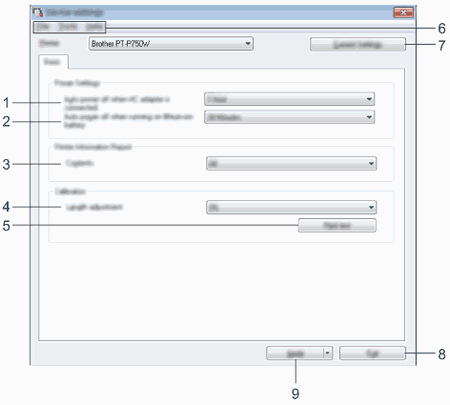
Specify or change the settings.
Graphic
1.
Auto power off when AC adapter is connected
Specify the amount of time that passes before the printer turns off automatically.
Available settings: [None], 10/20/30/40/50 minutes, 1/2/4/8/12 hours
2.
Auto power off when running on lithium-ion battery
Specify the amount of time that passes before the printer turns off automatically.
Available settings: [None], 10/20/30/40/50 minutes, 1 hour
3.
Contents
Specifies the printer information that will be printed.
Available settings: [All], [Usage Log], [Printer Settings]
4.
Length adjustment
Adjusts the length of the printed label to correspond to the length of the label displayed on the computer.
Available settings: -3% to +3% (1% increments)
5.
Print test
Prints a test label to check the length adjustment results.
6.
Menu Bar
Select a command contained in each menu from the list.
For details on the menu bar, see Menu Bar.
7.
Current Settings
Click this button to retrieve the settings from the currently connected printer and display them in the dialog box.
8.
Exit
Exits [Communication settings], and returns to the main window of the [Printer Setting Tool].
9.
Apply
Click [Apply] to apply the settings to the printer.
To save the specified settings in a command file, select [Save in Command File] from the drop-down menu.
5
After changing the settings, click [Apply] - [Exit], and then click [Exit] in the main window to finish specifying settings.

Menu Bar

File menu

Apply Settings to the Printer
Applies the settings to the printer. Performs the same operation as when the [Apply] button is clicked.
Save Settings in Command File
Saves the specified settings in a command file. The file extension is ".bin".
The saved command file can be used with the BRAdmin utility to apply the settings to a machine.
Import
Imports the exported file and applies the settings to this tool.
Export
Saves the current settings in a file.

Tool menu

Print Information Report
Prints the printer information.
Reset to Factory Defaults
Returns all printer settings to their factory defaults.
Option Settings
If the [Do not display an error message if the current settings cannot be retrieved at startup.] check box is selected, a message will not be displayed next time.