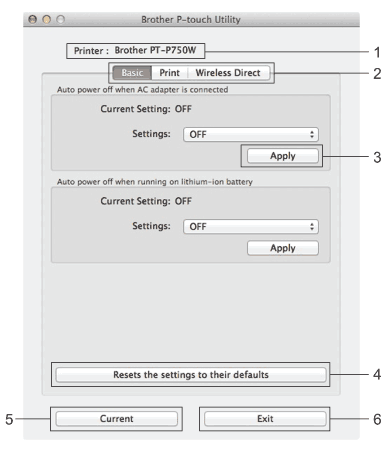
By using the P-touch Utility, the printer’s communication settings and device settings can be specified from the Macintosh computer when connecting the printer and computer with a USB cable.

Note
| | The P-touch Utility is installed at the same time as other software such as the printer driver. |

Important
| • | Before connecting the USB cable to the computer, check that the Editor Lite lamp is not lit. If the Editor Lite lamp is lit, press and hold down the Editor Lite button until the lamp goes off. |
| • | Make sure that the AC adapter is connected to an AC power outlet. |
| • | Make sure that the printer driver has been installed and is functional. |
| • | Connect this printer to a computer with a USB cable.
With this tool, settings cannot be specified using a wireless LAN connection. |
Using the P-touch Utility
| 1 | Connect the P-touch to the computer. |
| 2 | Click [Macintosh HD] - [Applications] - [Brother] - [P-touch Utilities] - [Brother P-touch Utility.app]. The [Brother P-touch Utility] window appears. |
Settings Dialog Box
| 1. | Printer Displays your printer’s model name. |
| 2. | Setting Tabs Click the tab containing the settings to be specified or changed. |
| 3. | Apply Sends the setting for each item to the printer. |
| 4. | Resets the settings to their defaults Returns all printer settings to their factory defaults. |
| 5. | Current Retrieves the settings from the currently connected printer and displays them in the dialog box. |
| 6. | Exit Exits the P-touch Utility. |