

Home > Introduction to Your Machine > Touchscreen LCD Overview


Touchscreen LCD Overview
DCP-L8630CDW/MFC-L8730CDW
You can select from two types of screens to set as the Main Home screen: Home screens and Shortcuts screens. When a Home screen is displayed, swipe left or right or press  or
or  to display the other Home screens.
The Main Home screen displays the machine's status when the machine is idle. When displayed, this screen indicates that your machine is ready for the next command.
If Active Directory Authentication or LDAP Authentication is enabled, the machine's control panel is locked.
The available features vary depending on your model.
From the Home screens, you can access the various settings.
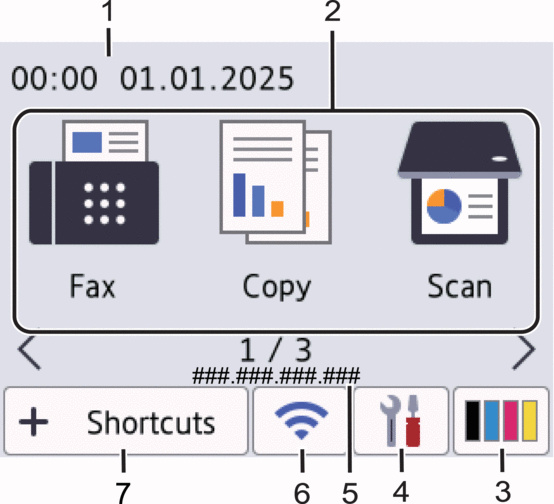
Home screen: Screen 1
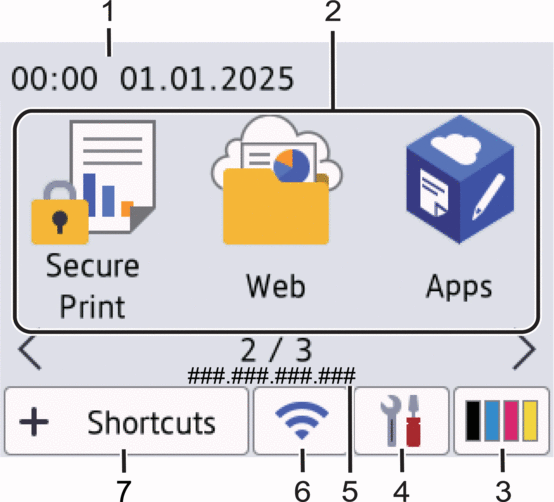
Home screen: Screen 2
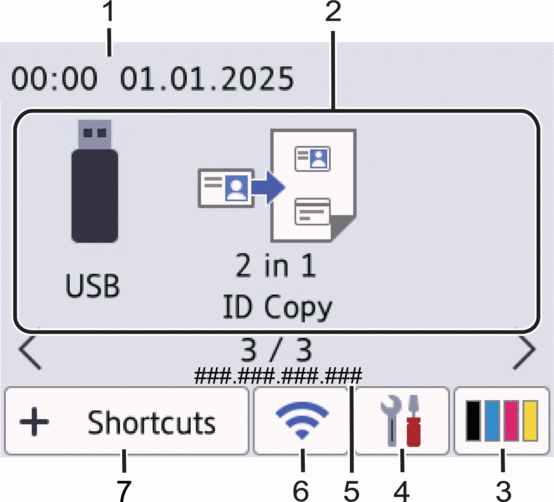
Home screen: Screen 3
Shortcuts screen
Create Shortcuts for frequently used operations, such as sending a fax, copying, scanning, and using Web Connect.


Date & Time
Displays the date and time set on the machine.
- Function Icons
 [Fax] (For MFC Models)
 Press to access Fax mode.
 [Copy]
 Press to access Copy mode.
 [Scan]
 Press to access Scan mode.
 [Secure Print]
 Press to access the [Secure Print] option.
 [Web]
[Web] Press to connect your machine to an Internet service.
 [Apps]
 Press to connect your machine to the Brother Apps service.
 [USB]
[USB] Press to access the USB menu and select [Scan to USB] or [Direct Print] options.
 [2 in 1 ID Copy]
 Press to access the 2 in 1 ID Copy option.
 (Toner)
 Displays the remaining toner life. Press to access the [Toner] menu.
 (Settings)
 Press to access the [Settings] menu.
If the Setting Lock function has been turned on, a lock icon appears on the LCD. You must unlock the machine to change the settings.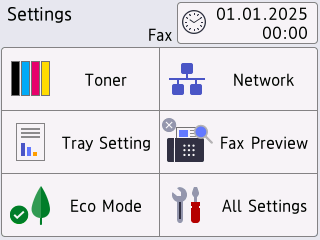
 Toner
Toner - Displays the remaining toner life.
- Press to access the [Toner] menu.
 /
/ Network
 - Press to set up a network connection.
- A four level indicator on the screen displays the current wireless signal strength if you are using a wireless connection.
 Fax Preview (For MFC Models)
 Press to access the [Fax Preview] menu.
 Wi-Fi Direct (For DCP Models)
 Press to access the [Wi-Fi Direct] menu.
 Tray Setting
 Press to access the [Tray Setting] menu.
 Eco Mode
 Press to access the [Eco Mode] menu.
 All Settings
 Press to access all machine settings.
 Date & Time
 Displays the date and time set on the machine.
Press to access the [Date & Time] menu.
IP Address
If the IP Address setting in the Display Information menu has been turned on, your machine's IP Address appears on the Home screens.
 or
or  (Wireless Status)
 Press to configure wireless settings.
If you are using a wireless connection, a four-level indicator displays the current wireless signal strength.
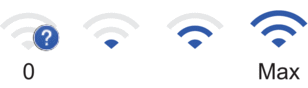
Wireless LAN Disabled
 [Shortcuts]
 Press to access the [Shortcuts] screen.
 (Home screen)
 Press to access the Home screens.
-
New Fax (For MFC Models)
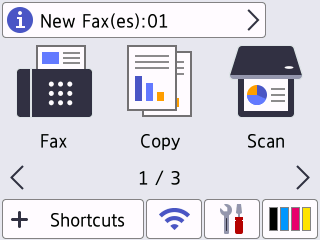
When [Fax Preview] is set to [On], the number of new faxes you received into the memory appears at the top of the screen.
Warning Icon
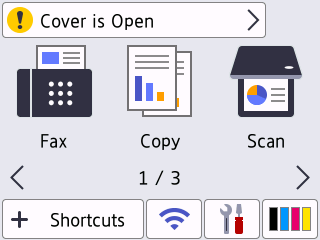
The warning icon
 appears when there is an error or maintenance message. Press the message area to view it, and then press
  to return to the Main Home screen.
MFC-L8930CDW/MFC-L8970CDW
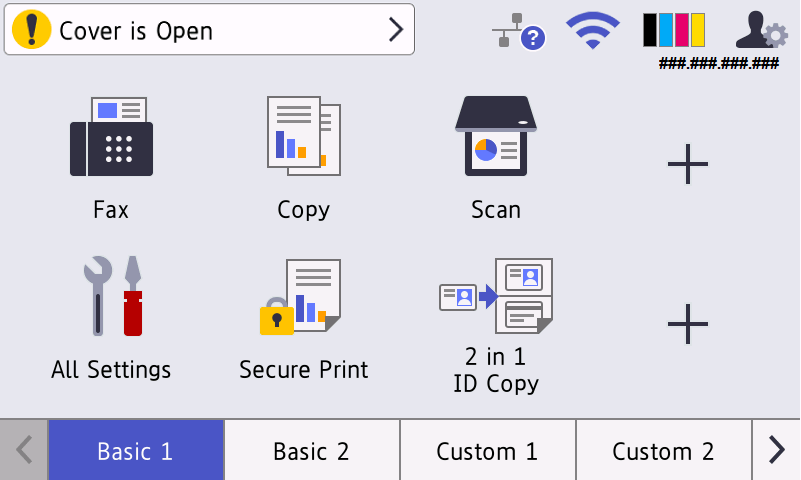
Your machine has eight tabbed screens (referred to as Home screens). Each Home screen can hold up to eight icons which can be used for functions, machine settings and shortcuts. A total of 64 icons can be placed on the Home screens as needed.
The Main Home screen can be selected from the Home screens.
Use the [Admin Settings] menu to rename the name of the tabs and rearrange the icons.

Date & Time
Displays the date and time set on the machine.
This area is also used to display error or maintenance messages.
 (Wired LAN Status)
 Press to configure the Wired LAN settings.
The icon displays the current wired network status.

Wired LAN Disabled
(Grey)
Wired LAN Enabled
(Blue)

No cable connection
 (Wireless Status)
 Press to configure the wireless settings.
If you are using a wireless connection, a four-level indicator displays the current wireless signal strength.
Wireless LAN Disabled
 (Toner)
 Displays the remaining toner life. Press to access the [Toner] menu.
 (Admin Settings)
 Press to access the [Admin Settings] menu.
If required, enter the password you use to manage this machine, and then press [OK].IP Address
If the IP Address setting in the Display Information menu has been turned on, your machine's IP Address appears on the Home screens.
Function Icons, Setting Icons, and Shortcut Icons
The following descriptions explain basic icons and features. The available features vary depending on your model.
 [All Settings]
 Press to access the machine's settings menu.
 [Fax]
[Fax] Press to access Fax mode.
 [Copy]
 Press to access Copy mode.
 [Scan]
 Press to access Scan mode.
 [Secure Print]
 Press to access the [Secure Print] option.
 [USB]
[USB] Press to access the USB menu and select [Scan to USB] or [Direct Print] options.
 [Web]
[Web] Press to connect your machine to an Internet service.
 [Apps]
 Press to connect your machine to the Brother Apps service.
 [2 in 1 ID Copy]
 Press to access the 2 in 1 ID Copy option.
 [Eco Mode]
 Press to access the [Eco Mode] menu.
 (Shortcuts)
 Press to create Shortcuts for frequently-used operations, such as sending a fax, copying, scanning, and using Web Connect.
Tabs Scroll Buttons
Press to switch the Home screens.
Home Tabs
Press to display the screen for the Home.
-
New Fax

When [Fax Preview] is set to [On], the number of new faxes you received into the memory appears at the top of the screen.
Warning icon
The warning icon
 appears when there is an error or maintenance message. Press the message area to view it, and then press to return to the Main Home screen.