



Copy a Document
MFC-J5010DW
- Make sure you have loaded the correct size paper in the paper tray.
- Press
 [Copy]. The touchscreen displays: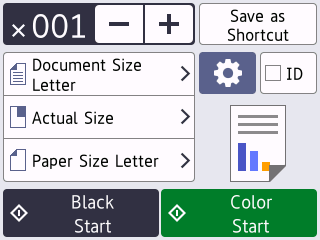
- Change the copy settings, if needed.

When you load paper other than Letter size plain paper, you must change the [Paper Size] and [Paper Type] settings by pressing
 [Options]. OptionDescription
 (No. of Copies)
 Enter the number of copies in one of the following ways:
- Press - or + on the touchscreen.
- Press to display the keyboard on the touchscreen, and then enter the number of copies using the touchscreen keyboard. Press OK.
(Options)Press
Options to change the copy settings for the next copy only. When you have finished changing settings, press OK.
IDTo make an ID card copy with the 2in1 ID Vertical layout, select the ID checkbox.Current setting indications
Press the area indicated on the screen to change copy settings for the next copy only.
 Document Size
  Enlarge/Reduce
  Paper Size
- After you have finished selecting new options, you can save them by pressing [Save as Shortcut].
To make this a One Touch Shortcut, you must select the [Color Copy] or [Mono Copy] option in the shortcut. Press
, select [Color Copy] or [Mono Copy], change other settings, and then press [Save as Shortcut].
- Press [Black Start] or [Color Start].
 .
. MFC-J5110DW/MFC-J5115DW
- Make sure you have loaded the correct size paper in the paper tray.
- Press [Copy]. The touchscreen displays:
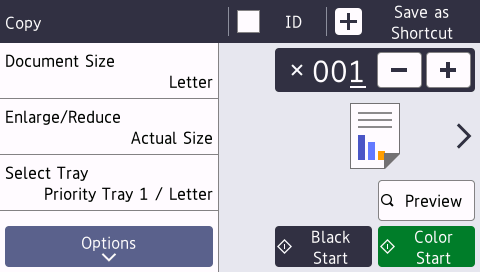
- Change the copy settings, if needed.
When you load paper other than Letter size plain paper, you must change the [Paper Size] and [Paper Type] settings by pressing [Options].
OptionDescription (No. of Copies) Enter the number of copies in one of the following ways:
- Press - or + on the touchscreen.
- Press to display the keyboard on the touchscreen, and then enter the number of copies using the touchscreen keyboard. Press OK.
OptionsPress Options to change the copy settings for the next copy only.
IDTo make an ID card copy with the 2in1 ID Vertical layout, select the ID checkbox.Quick Copy
Press > to access the preset copy settings.
Current setting indications
Press the area indicated on the screen to change copy settings for the next copy only.
- Document Size
- Enlarge/Reduce
- Select Tray
 PreviewPreview the copied result on the LCD, before the machine starts printing.
- After you have finished selecting new options, you can save them by pressing [Save as Shortcut].
To make this a One Touch Shortcut, you must select the [Color Copy] or [Mono Copy] option in the shortcut. Press , select [Color Copy] or [Mono Copy], change other settings, and then press [Save as Shortcut].
- To preview the copied result before the machine starts printing, press [Preview] and then press [Black Start] or [Color Start]. The machine scans the document and displays only the first page (one side) of the copied result on the LCD. If the copied result is fine, press [Start] to print it and to finish processing.
- Press [Black Start] or [Color Start].
.