


| | |
| 1 | Click the  (ControlCenter4) icon in the task tray and then select Open from the menu. (ControlCenter4) icon in the task tray and then select Open from the menu.The ControlCenter4 window will appear.  Note Note |
| 2 | Click the Device Settings tab (the example below uses Home Mode). 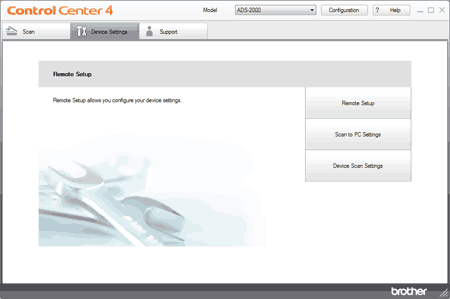 |
| 3 | Click the Scan to PC Settings button. The Remote Setup window will appear. |
| 4 | Select Image from the drop-down list. 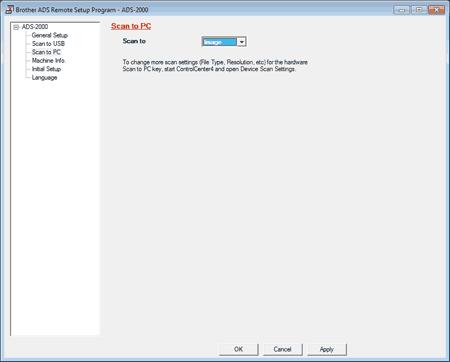 |
| 5 | Click the OK button to close the Remote Setup window. |
| 6 | Click the Device Scan Settings button on the Device Settings tab. The Device Scan Settings dialog box will appear. |
| 7 | Click the Image tab. 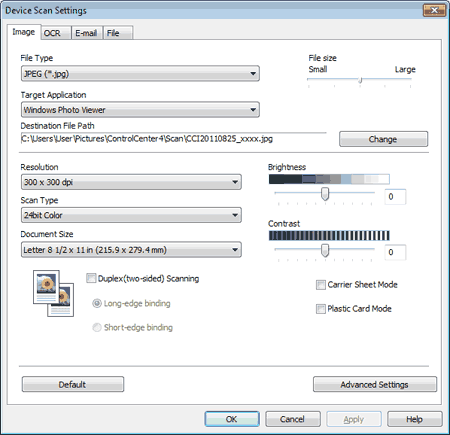 |
| 8 | Select PDF from the File Type drop-down list. Note |
| 9 | Change other settings if needed (see Change Scan to PC Settings). |
| 10 | Load your document. |
| 11 | Press Scan to PC. The machine starts scanning. |
| | |
 (
(