


| | |
 Note
Note| • | Printing can be distributed to printers connected via a USB connection or wireless network connection. |
| • | The number of pages to be printed is automatically divided among the selected printers. If the specified number of pages cannot be evenly divided among the printers, it will be divided in the order of the printers listed in the dialog box when the print settings are specified in step 4. |
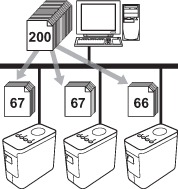
| 1 | From the [File] menu in P-touch Editor, click [Print]. | ||
| 2 | Click [Properties…]. | ||
| 3 | Select the [Advanced] tab, select the [Distributed Printing] check box, and then click [Settings]. 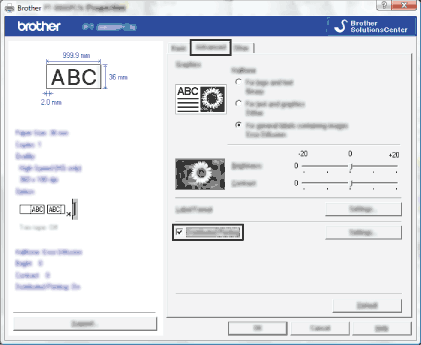 | ||
| 4 | In the [Distributed Printing Settings] dialog box, select the printers to be used for distributed printing. 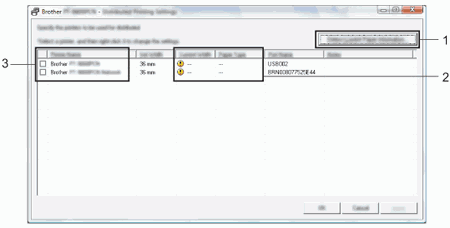 Note Note | ||
| 5 | Specify the tape width to be used for printing. In the dialog box from step 4, select the printer whose setting is to be specified, and then either double-click it or right-click it and click [Settings]. From the [Set Width] drop-down list, select the tape width. 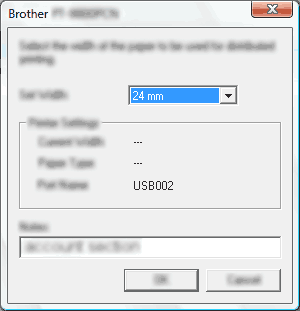 Note Note
In the dialog box from step 4, select the printers whose setting are to be specified, and right-click them and click [Settings]. From the [Set Width] drop-down list, select the tape width. The same tape width setting is applied to all selected printers. 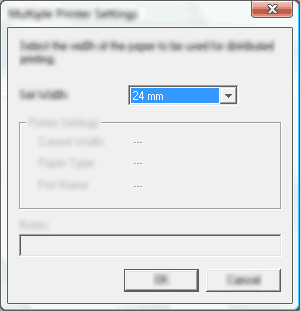 Note Note | ||
| 6 | Click [OK] to close the tape width setting window. | ||
| 7 | Click [OK] to close the [Distributed Printing Settings] window. Setup is completed. | ||
| 8 | Click [OK] to start distributed printing. |
Note| | |
 appears beside the setting below [