

Home > Set Up Your Printer > Load the Roll


Load the Roll
Load the Roll
- Push the Roll Cover Release Lever to open the Roll Compartment Cover.
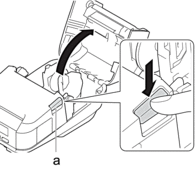
- Roll Cover Release Lever
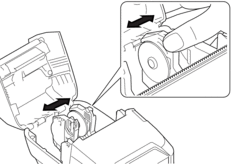
- Slide both Roll Guides outward.
- Make sure that the roll is correctly aligned, and then insert it into the Roll Compartment.
- NOTE
- If the core of the roll is protruding, flatten the edges before setting, as illustrated.
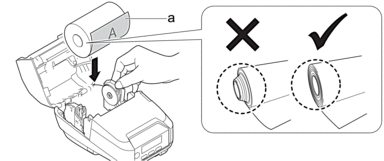
- Print surface (faces outward on the roll)
- Close the Roll Compartment Cover until it locks into place.
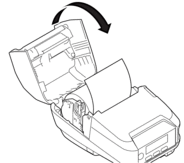
- If the LCD shows [Select Media] or [Auto Detect], select the option you want. To configure these settings later, go to the [Media].
- NOTE
-
- For best performance, use genuine Brother media.
- To allow the reflective/black mark sensor to detect the mark and feed the media to the correct position, use paper with a black mark on the detection range of the sensor.
- Use paper that meets any of the following conditions so that the reflective/black mark sensor can detect the mark correctly.

- When using die-cut labels, set the paper type to Die-cut Label, and press the
 (Feed) / OK button after inserting the roll. The printer will feed the label to the top of form position.
 - To remove the roll, reverse the loading procedure.
- Make sure the inserted roll turns freely between the Roll Guides.
Paper with a Black Mark from the Left End to the Right End (Recommended)
Use paper that meets the conditions described in the illustration below.
Although the detection range of the reflective/black mark sensor differs depending on the printer model being used, the black mark described in the illustration is long enough to cover the detection range of the sensor regardless of models.
- Media without any fold lines like perforations
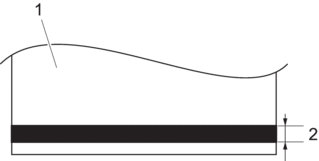
- Back of media
- 0.12” (3 mm) or more
- Media with fold lines like perforations
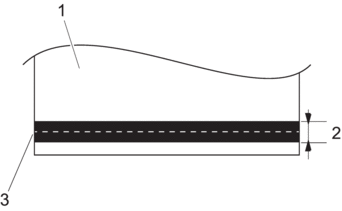
- Back of media
- 0.16” (4 mm) or more
- Flod lines like perforations
Paper with a Black Mark on the Detection Range of the Reflective/Black Mark Sensor
Use paper that meets the conditions described in the illustration below.
Since the detection range of the reflective/black mark sensor differs depending on the printer model being used, the appropriate length of the black mark also differs by models.
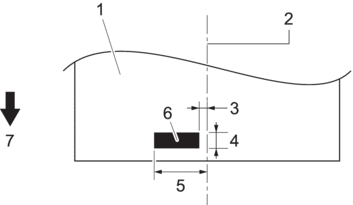
- Back of media
- Centerline of media
- 0.06” (1.5 mm) or below
- 0.12” (3 mm) or more
(Media with fold lines like perforations: 0.16” (4 mm) or more)
- 0.39” (10 mm) or more
- Black mark
Feed direction
Change the Media Roll Holders to Use Custom-Size Media
- RJ-3235B/RJ-3255WB: 0.75" (19 mm)
- RJ-4235B/RJ-4255WB: 0.5”-0.51”(12.7 mm-13.0 mm)
To use custom-size media, attach the Media Roll Holders that match your media's core size to the Roll Guides.
- NOTE
-
- A set of two Media Roll Holders is included with your machine. The core diameters of two Media Roll Holders as follows:
- RJ-3235B/RJ-3255WB: 1" (25.4 mm)
- RJ-4235B/RJ-4255WB: 1" (25.4 mm)
- Not all types of Media Roll Holders may be supplied with your printer. To purchase additional Media Roll Holders, contact your local Brother dealer.
- To check which media core sizes each Media Roll Holder supports, check the information on the center of the Media Roll Holder.
- If using multi-size Media Roll Holders, make sure the same-size sides face each other when attached to the Roll Guides.
- Push the Roll Cover Release Lever to open the Roll Compartment Cover.
- Hold the left Roll Guide so that it does not rotate, and then remove the currently installed Media Roll Holder using a Phillips screwdriver.
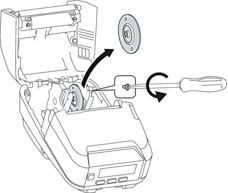
- Hold the right Roll Guide so that it does not rotate, and then remove the currently installed Media Roll Holder using a Phillips screwdriver.
- Attach the Media Roll Holders that match your media's core size to the Roll Guides using a Phillips screwdriver. Make sure you use the same size Media Roll Holders.
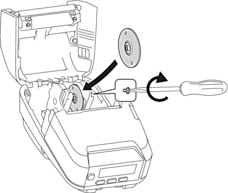
- Insert the roll. For more information, , see Related Topics..
- Close the Roll Compartment Cover and press until it locks into place.
- If the LCD automatically shows [Select Media] or [Auto Detect], select the option you want. To configure these settings later, go to the [Media] menu
Tear-Off Media
- Receipt paper, labels, and tags can be torn off by swiftly pulling up or down on the media according to the set cutting position. Linerless media can only be torn upward.
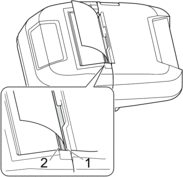
- Upper Tear Bar
- Lower Tear Bar
- CAUTION
- Do not touch the Tear Bar blade.
- The default [Tear Bar] setting is set to [Upward]. (When Linerless is set to On in the Advanced tab of the BRConfiguration Tool, the [Tear Bar] setting is not available.)
- To adjust the cutting position, open the BRConfiguration Tool, go to Print Position / Sensors in the Device Settings, and then enter the setting you want in the Tear Adjust field. For more information, see Related Topics.