

Home > Introduction to Your Machine > Touchscreen LCD Overview


Touchscreen LCD Overview
From the Home screen, you can access the various settings.
The Home screen displays the machine's status when the machine is idle.
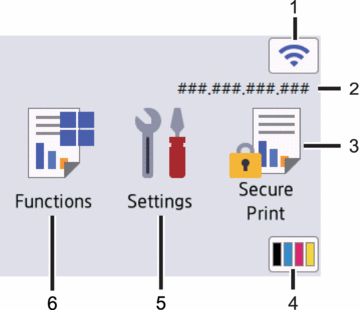
 (Wireless Status)
 Press to configure wireless settings.
If you are using a wireless connection, a four-level indicator on the Home screen displays the current wireless signal strength.
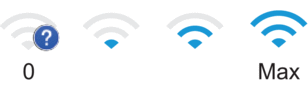
If you see
 displayed as the wireless status, press it to select a wireless connection method or configure an existing wireless connection.
- IP Address
If the IP Address setting in the Screen Settings menu is turned on, your machine's IP Address appears on the Home screen.
 [Secure Print]
 Press to access the Secure Print option.
 (Toner)
 Displays the remaining toner life. Press to access the [Toner] menu.
 [Settings]
 Press to access the [Settings] menu.
Use the Settings menu to access all of your machine's settings.
If the Setting Lock is set to On, a lock icon
 appears on the LCD. You must unlock the machine to change any settings.
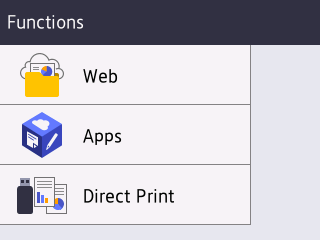
  [Functions]
 Press to access the Functions screen.
 [Web]
[Web] Press to connect your machine to an Internet service.
 [Apps]
 Press to connect your machine to the Brother Apps service.
 [Direct Print]
 Press to access the Direct Print menu.
- Warning icon
-
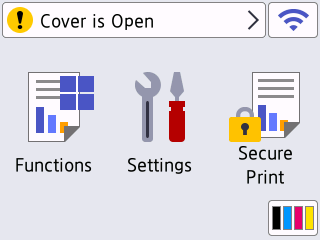
The warning icon
 appears when there is an error or maintenance message. Press to view it, address the issue, and then press
  to return to Ready Mode.