Take out the jammed paper depending on where it is jammed in the machine.
1
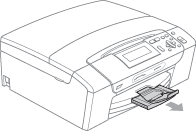
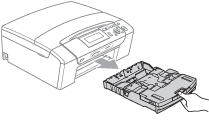
If the paper support flap is open, close it, and then close the paper support. Pull the paper tray completely out of the machine.
2
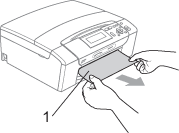
Pull out the jammed paper (1) and press Stop/Exit.
3
Reset the machine by lifting the scanner cover from the front of the machine and then closing it.
•
If you cannot remove the jammed paper from the front side, or the error message still appears on the LCD after you remove the jammed paper, please go to the next step.
4
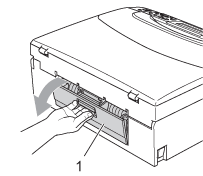
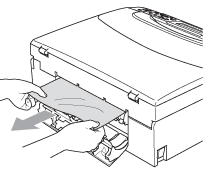
Open the Jam Clear Cover (1) at the back of the machine. Pull the jammed paper out of the machine.
5
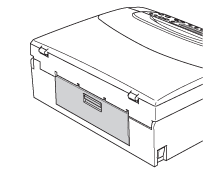
Close the Jam Clear Cover. Make sure the cover is closed properly.
6
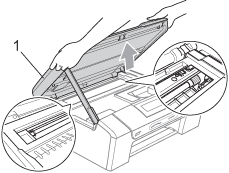
Using both hands, use the plastic tabs on both sides of the machine to lift the scanner cover (1) until it locks securely in the open position.
Make sure that there is no jammed paper left inside the machine. Check both ends of the print carriage.
IMPORTANT
•
If the paper is jammed under the print head, unplug the machine from the power source, and then move the print head to take out the paper.
•
If the print head is at the right corner like the illustration, you cannot move the print head. Hold down Stop/Exit until the print head moves to the middle. Then unplug the machine from the power source, and take out the paper.
•
If ink gets on your skin or clothing immediately wash it off with soap or detergent.
7
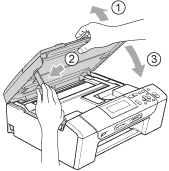
Lift the scanner cover to release the lock (). Gently push the scanner cover support down () and close the scanner cover () using both hands.
8
Push the paper tray firmly back into the machine. While holding the paper tray in place, pull out the paper support until it clicks and unfold the paper support flap.
IMPORTANT
Make sure you pull out the paper support until it clicks.



 IMPORTANT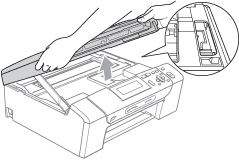

 ). Gently push the scanner cover support down (
 ) and close the scanner cover (
 ) using both hands.