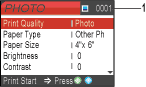
PhotoCapture Center® print settings

You can change the print settings temporarily for the next printing.
These settings are temporary, and the machine returns to its default settings 180 seconds after printing.
Note Note
 
You can save the print settings you use most often by setting them as default. (See Setting your changes as new default.)
Graphic
1.
No of prints
(For View Photo(s))
You can see the total number of photos that will be printed.
(For Print All Photos, Print Photos)
You can see the number of copies of each photo that will be printed.
Menu Selections
Options1
Options2
Page
Print Quality
Normal/Photo
 
Paper Type
Plain Paper/Inkjet Paper/Brother Photo/Other Photo
 
Paper Size
Letter/A4/4"x 6"/5"x 7"
(When A4 or Letter is selected)
4"x 3"
5"x 3.5"
6"x 4"
7"x 5"
8"x 6"
Max. Size
Brightness
Graphic
 
Contrast
Graphic
 
True2Life
On/Off
White Balance / Sharpness / Color Density / Exit
Graphic
Cropping
On/Off
 
Borderless
On/Off
 
Set New Default
Yes/No
 
Factory Reset
Yes/No
 

Print Quality

1
Press Bsymbol.utri or Bsymbol.dtri to choose Print Quality.
Press OK.
2
Press Bsymbol.utri or Bsymbol.dtri to choose Normal or Photo.
Press OK.
3
If you do not want to change additional settings, press Color Start to print.