Loading paper and other media

Note Note
 
To print on Photo (4"×6") or Photo L (3.5"×5") paper, you must use the photo bypass tray. (See Loading photo paper.)
1
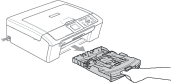
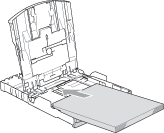
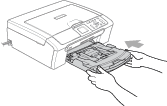
Pull the paper tray completely out of the machine.
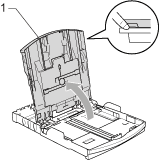
If the paper support flap is open, close it and lift the output paper tray cover (1).
Graphic
Graphic
2
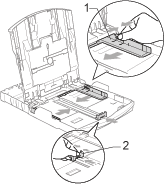
Press and slide the paper side guides (1) and paper length guide (2) to fit the paper size.
Graphic
3
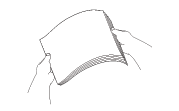
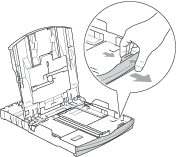
Fan the stack of paper well to avoid paper jams and misfeeds.
Graphic
Note Note
 
Always make sure that the paper is not curled.
4
Gently put the paper into the paper tray print side down and top edge first.
Check that the paper is flat in the tray.
Graphic
Note Note
 
When you use Legal size paper, press and hold the universal guide release button as you slide out the front of the paper tray.
Graphic
5
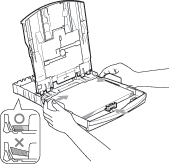
Gently adjust the paper side guides with both hands and the paper length guide to the paper.
Make sure the paper side guides touch the sides of the paper.
Graphic
Note Note
 
Be careful that you do not push the paper in too far; it may lift at the back of the tray and cause feed problems.
6
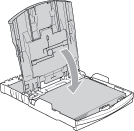
Close the output paper tray cover.
Graphic
7
Slowly push the paper tray completely into the machine.
Graphic
8
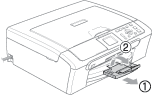
While holding the paper tray in place, pull out the paper support (1) until it clicks and unfold the paper support flap (2).
Graphic
Note Note
 
Do not use the paper support flap for Legal paper.

Loading envelopes and post cards

About envelopes

• 
Use envelopes that weigh from 20 to 25 lb (75 to 95 g/m2).
• 
Some envelopes need margin settings to be set in the application. Make sure you do a test print first.
CAUTION CAUTION
 
Do not use any of the following types of envelopes, as they will cause paper feed problems:
• 
That are of a baggy construction.
• 
That are embossed (have raised writing on them).
• 
That have clasps or staples.
• 
That are pre-printed on the inside.
Glue
Graphic
Double flap
Graphic
Occasionally you may experience paper feed problems caused by the thickness, size and flap shape of the envelopes you are using.

How to load envelopes and post cards

1
Before loading, press the corners and sides of the envelopes or post cards to make them as flat as possible.
Note Note
 
If the envelopes or post cards are ‘double-feeding,’ put one envelope or post card in the paper tray at a time.
Graphic
Graphic
Graphic
1
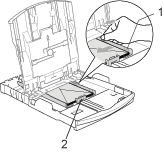
Put the envelopes or post cards into the paper tray with the address side down and the leading edge in first as shown in the illustration. Slide the paper side guides (1) and paper length guide (2) to fit the size of the envelopes or post cards.
Graphic

If you have problems when printing on envelopes, try the following suggestions:

1
Open the envelope flap.
2
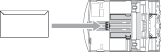
Make sure the open flap is either to the side of the envelope or to the back edge of the envelope when printing.
3
Adjust the size and margin in your application.
Graphic
Graphic