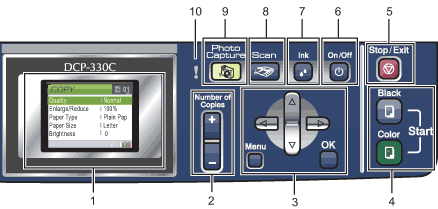
The DCP-330C and DCP-540CN have the same control panel keys.
Note
Most of the illustrations in this User’s Guide show the DCP-330C.
1.
LCD (liquid crystal display)
Displays messages on the screen to help you set up and use your machine.
Also, you can adjust the angle of the LCD display by lifting it.
2.
Number of Copies
Use this key to make multiple copies.
3.
Menu keys:
•
or
Press to scroll backward or forward to a menu selection.
•
or
Press to scroll through the menus and options.
•
Menu
Lets you access the main menu to program the machine.
•
OK
Lets you select a setting.
4.
Start keys:
•
Color Start
Lets you start making copies in full color. Also lets you start a scanning operation (in color or black & white, depending on the scanning setting in the ControlCenter software).
•
Black Start
Lets you start making copies in black & white. Also lets you start a scanning operation (in color or black & white, depending on the scanning setting in the ControlCenter software).
5.
Stop/Exit
Stops an operation or exits from a menu.
6.
On/Off
You can turn the machine on or off.
If you turn the machine off, it will still periodically clean the print head to maintain print quality.
7.
Ink
Lets you clean the print head, check the print quality, and check the available ink volume.
8.
Scan
Lets you access Scan mode.
9.
PhotoCapture
Lets you access PhotoCapture Center® mode.
10.
Status LED
Turns red when the LCD displays an error or an important status message.
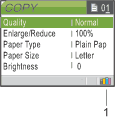
LCD display screen
The LCD display screen shows the mode the machine is in, the current settings, and the available ink volume.


 Note
Note


 Status LED