| | |
Error Message | Cause | Action |
Cover is Open | The scanner cover is not closed completely. | Lift the scanner cover and then close it again. |
The ink cartridge cover is not completely closed. | Firmly close the ink cartridge cover until it clicks. | |
Data Remaining | Print data is left in the machine's memory. | Re-start printing from your computer. |
Print data is left in the machine's memory. The USB cable was unplugged while the computer was sending the data to the machine. | Press Stop/Exit. The machine will cancel the job and clear it from the memory. Try to print again. | |
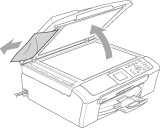
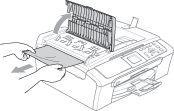
Document Jam | The document was not inserted or fed properly, or the document scanned from the ADF was too long. | |
High Temperature | The print head is too warm. | Allow the machine to cool down. |
One or more of the ink cartridges is empty. The machine will stop all print operations. | Replace the ink cartridges. (See Replacing the ink cartridges.) | |
Low Temperature | The print head is too cold. | Allow the machine to warm up. |
Media Error | The media card is either corrupted, improperly formatted, or there is a problem with the media card. | Put the card firmly into the slot again to make sure it is in the correct position. If the error remains, check the media drive by putting in another media card that you know is working. |
One or more of the ink cartridges are running out of ink. | Order a new ink cartridge. (See Ordering accessories and supplies .) | |
No Cartridge | An ink cartridge is not installed properly. | Take out the ink cartridge and put it in again seating it properly. (See Replacing the ink cartridges.) |
No File | The media card in the media drive does not contain a .JPG file. | Put the correct media card into the slot again. |
The machine is out of paper or paper is not properly loaded in the paper tray. | Do one of the following: | |
The paper is jammed in the machine. | ||
The machine's memory is full. | Printing operation in progress Reduce print resolution. (For details, see Printing for Windows® or Printing and Faxing for Macintosh® in the Software User's Guide on the CD-ROM.) | |
Paper Jam | Paper is jammed in the machine. | Remove the Jam Clear Cover (at the back of the machine) and pull out the jammed paper. See Printer jam or paper jam. |
Unable to Clean XX Unable to Init. XX Unable to Print XX Unable to Scan XX | The machine has a mechanical problem. | Disconnect the machine from the power for several minutes, then reconnect it. |
Wrong USB device | A non-PictBridge compatible or broken device has been connected to the PictBridge port. | Unplug the device from the PictBridge port, then press On/Off to turn the machine off and then on again. |
| | |
 Note
Note