

Home > Machine Settings > Change Machine Settings from the Control Panel > Settings and Features Tables > Feature Tables (MFC-L8930CDWMFC-L8970CDW)


Feature Tables (MFC-L8930CDW/MFC-L8970CDW)
Wired Network Setup
 (Wired Network Setup)
Level 3 | Descriptions |
|---|---|
TCP/IP | Change the TCP/IP settings. |
Ethernet | Select the Ethernet link mode. |
Wired Status | View the current wired status. |
MAC Address | View the machine's MAC address. |
Set to Default | Restore the wired network settings to the factory settings. |
Wired Enable | Turn the Wired LAN interface on or off manually. |
Wi-Fi® Setup
 (Wi-Fi® Setup)
Level 3 | Descriptions |
|---|---|
Find Wi-Fi Network | Configure your wireless network settings manually. |
WPS/Push Button | Configure your wireless network settings using the one-button push method. |
WPS/PIN Code *1 | Configure the wireless network settings using WPS with a PIN code. |
Recover WLAN *1 | Reset and restart your wireless network. |
WLAN Status *1 | Display the wireless network connection status. |
TCP/IP *1 | Change the TCP/IP settings. |
MAC Address *1 | Display your machine's MAC address. |
Set to Default *1 | Restore your machine's wireless network settings to the factory settings. |
WLAN Enable *1 | Turn the wireless interface on or off. |
Available after a Wi-Fi® connection has been configured.
[Toner]
 [Toner]
Level 3 | Level 4 | Descriptions |
|---|---|---|
Toner Life | - | View the approximate remaining toner life for each colour. |
Test Print | - | Print a test page. |
Colour Correction | Correction Start | Initiate colour calibration to check and correct colours. |
Reset | Reset the calibration parameters to the default settings. | |
Toner Cartridge Check | - | View the installed toner cartridge information on the LCD, for example, if the toner cartridge is genuine. |
[Admin Settings]
 [Admin Settings]
Level 2 | Descriptions |
|---|---|
Admin Settings | Change the screen settings and restrict use of the machine. |
[Fax] (When Fax Preview is Off)
 [Fax] (When Fax Preview is Off)
Level 3 | Level 4 | Level 5 | Level 6 | Descriptions |
|---|---|---|---|---|
Redial / Pause | - | - | - | Redial the last number called. When you are entering a fax or telephone number on the touchscreen, Redial changes to Pause on the LCD. Press Pause when you need a delay while dialling numbers, such as access codes and credit card numbers. You can also store a pause when you set up addresses. |
Tel / R | - | - | - | Tel changes to R when PBX is selected as the telephone line type. You can use R to gain access to an outside line or to transfer a call to another extension when connected to a PBX. |
Address Book |
(Search) | - | - | Search within the Address Book. |
Edit | Add New Address | Name | Store Address Book numbers, set up Group numbers for Broadcasting, change and delete Address Book numbers. | |
Address | ||||
Setup Groups | Name | |||
Add/Delete | ||||
Change | (Select Address) | |||
Delete | (Select Address) | |||
(Select Address Book) | Apply | - | Start sending a fax using the Address Book. | |
Call History | Outgoing Call | (Select Outgoing Call) | Apply | Select a number from the Outgoing Call history, and then send a fax to it, add it to the Address Book, or delete it. |
Edit | ||||
Fax Start | - | - | - | Send a fax. |
Options | Fax Resolution | - | - | Set the resolution for outgoing faxes. |
Sender Subject | - | - | Edit the subject of an outgoing fax. | |
Contrast | - | - | Adjust the contrast. | |
2-sided Fax | - | - | Set the 2-sided scanning format. | |
Glass Scan Size | - | - | Adjust the scan area of the scanner glass to the size of the document. | |
Broadcasting | Add Number | Add Number | Send the same fax message to more than one fax number. | |
Add from Address book | ||||
Search in Address book | ||||
Preview | - | - | Preview a fax message before you send it. | |
Delayed Fax | Delayed Fax | - | Set the time of day the delayed faxes will be sent. | |
Set Time | - | |||
Real Time TX | - | - | Send a fax without using the memory. | |
Coverpage Setup | Coverpage Setup | - | Set the machine to automatically send a pre-programmed cover page. | |
Coverpage Note | - | |||
Total Pages | - | |||
Overseas Mode | - | - | Set to On if you have difficulty sending faxes overseas. | |
Set New Default | - | - | Save your settings as the default. | |
Factory Reset | - | - | Restore all settings back to the factory settings. | |
Save as Shortcut | - | - | - | Save the current settings as a shortcut. |

[Fax] (When Fax Preview is On)
[Fax] (When Fax Preview is On)
Level 3 | Level 4 | Level 5 | Descriptions |
|---|---|---|---|
Sending Faxes | Redial / Pause | - | Redial the last number called. When you are entering a fax or telephone number on the touchscreen, Redial changes to Pause on the LCD. Press Pause when you need a delay while dialling numbers, such as access codes and credit card numbers. You can also store a pause when you set up addresses. |
Tel / R | - | Tel changes to R when PBX is selected as the telephone line type. You can use R to gain access to an outside line or to transfer a call to another extension when connected to a PBX. | |
Address Book | - | Select the address of the recipient from the address book. | |
Call History | - | Select a number from the Outgoing Call history, and then send a fax to it, add it to the Address Book, or delete it. | |
Fax Start | - | Send a fax. | |
Options | - | Select your settings. | |
Save as Shortcut | - | Save the current settings as a shortcut. | |
Received Faxes | Print/Delete | Print All(New Faxes) | Print the new received faxes. |
Print All(Old Faxes) | Print the old received faxes. | ||
Delete All(New Faxes) | Delete the new received faxes. | ||
Delete All(Old Faxes) | Delete the old received faxes. | ||
Address Book | - | - | Select the address of the recipient from the address book. |
Call History | - | - | Select a number from the Outgoing Call history, and then send a fax to it, add it to the Address Book, or delete it. |
[Copy]
 [Copy]
Level 3 | Level 4 | Level 5 | Descriptions |
|---|---|---|---|
Mono Start | - | - | Make a monochrome or greyscale copy. |
Colour Start | - | - | Make a colour copy. |
ID | - | - | Make a copy of your ID card. |
Interrupt | - | - | Interrupt a print job with a copy job. |
> (more Copy options) | Receipt | Mono Start | Set the preset copy settings for copying a receipt. |
Colour Start | |||
ID | |||
Interrupt | |||
> (more Copy options) | |||
Options | |||
Save as Shortcut | |||
Normal | Mono Start | Set the preset copy settings for a Normal copy. | |
Colour Start | |||
ID | |||
Interrupt | |||
> (more Copy options) | |||
Options | |||
Save as Shortcut | |||
2sided(1⇒2) | Mono Start | Set the preset copy settings of 2-sided (1⇒2). | |
Colour Start | |||
ID | |||
Interrupt | |||
> (more Copy options) | |||
Options | |||
Save as Shortcut | |||
2sided(2⇒2) | Mono Start | Set the preset copy settings of 2-sided (2⇒2). | |
Colour Start | |||
ID | |||
Interrupt | |||
> (more Copy options) | |||
Options
| |||
Save as Shortcut | |||
2in1(ID) | Mono Start | Set the preset copy settings of 2in1(ID). | |
Colour Start | |||
ID | |||
Interrupt | |||
> (more Copy options) | |||
Options | |||
Save as Shortcut | |||
2in1 | Mono Start | Set the preset copy settings of 2in1. | |
Colour Start | |||
ID | |||
Interrupt | |||
> (more Copy options) | |||
Options | |||
Save as Shortcut | |||
Paper Save | Mono Start | Set the preset copy settings for Paper Save. | |
Colour Start | |||
ID | |||
Interrupt | |||
> (more Copy options) | |||
Options | |||
Save as Shortcut | |||
Options | Quality | - | Select the Copy resolution for your document type. |
Select Tray | - | Select the paper tray you want to use. | |
Enlarge/Reduce | 100% | - | |
Enlarge | Select an enlargement ratio for the next copy. | ||
Reduce | Select a reduction ratio for the next copy. | ||
Custom(25-400%) | Enter an enlargement or reduction ratio. | ||
Density | - | Adjust the density. | |
Remove Background Colour | - | Change the amount of background colour that is removed. | |
2-sided Copy | Layout | Turn off or turn on 2-sided copying and select flip on long edge or flip on short edge. | |
2-sided Copy Page Layout | - | Select a page layout option when you make 2-sided N in 1 copies from a 2-sided document. | |
Contrast | - | Adjust the contrast. | |
Stack/Sort | - | Select to stack or sort multiple copies. | |
2in1/1in1 | - | If you select 2 in 1 (ID), you can select the layout options. | |
Page Layout | - | Make N in 1 copies. | |
Auto Deskew | - | Set the machine to correct document skewing automatically. | |
Colour Adjust | Red Green Blue | Adjust the colour for copies. | |
Save as Shortcut | - | - | Save the current settings as a shortcut. |
[Scan]
 [Scan]
Level 3 | Level 4 | Level 5 | Level 6 | Descriptions |
|---|---|---|---|---|
to USB | Scan Actions | - | - | Scan documents to a USB flash drive. |
Options | 2-sided Scan | - | ||
Colour Setting | - | |||
Resolution | - | |||
File Type | - | |||
Document Size | - | |||
Brightness | - | |||
Contrast | - | |||
File Name | - | |||
File Name Style | - | |||
File Size | - | |||
Auto Crop | - | |||
Auto Deskew | - | |||
Skip Blank Page | - | |||
Skip Blank Page Sensitivity | - | |||
Remove Background Colour | - | |||
Margin Settings | - | |||
Moire Reduction | - | |||
Document Separation | Document Separation | |||
Copies | ||||
Number of Pages | ||||
Colour/Grey TIFF Compress | - | |||
B&W TIFF Compress | - | |||
Set New Default | - | |||
Factory Reset | - | |||
Save as Shortcut | - | - | ||
Start | ||||
to My E-mail | - | - | - | Scan a monochrome or a colour document to your email address. |
to My Folder | - | - | - | Send scanned data to your folder in the CIFS server on your local network or on the Internet. |
to PC | to File | Scan Actions | - | Scan documents and save them to a folder on your computer. |
(Select USB or PC) | Options | |||
Save as Shortcut | ||||
Start | ||||
to OCR | Scan Actions | - | Convert your scanned document to an editable text file. | |
(Select USB or PC) | Options | |||
Save as Shortcut | ||||
Start | ||||
to Image | Scan Actions | - | Scan photos or graphics into your graphics applications. | |
(Select USB or PC) | Options | |||
Save as Shortcut | ||||
Start | ||||
to E-mail | Scan Actions | - | Send a scanned document as an email attachment. | |
(Select USB or PC) | Options | |||
Save as Shortcut | ||||
Start | ||||
to E-mail Server | Cancel | - | - | Scan a monochrome or a colour document to the email address you want. |
Scan Actions | - | - | ||
Manual | - | - | ||
Address Book |
(Search) | - | ||
Edit | - | |||
(Select Address Book) | - | |||
Next | Destinations | - | ||
Preview | - | |||
Options | 2-sided Scan | |||
Colour Setting | ||||
Resolution | ||||
File Type | ||||
Document Size | ||||
Sender Subject | ||||
Brightness | ||||
Contrast | ||||
File Name | ||||
File Name Style | ||||
File Size | ||||
Auto Deskew | ||||
Skip Blank Page | ||||
Skip Blank Page Sensitivity | ||||
Remove Background Colour | ||||
Margin Settings | ||||
Moire Reduction | ||||
Document Separation | ||||
Colour/Grey TIFF Compress | ||||
B&W TIFF Compress | ||||
Preview | ||||
Set New Default | ||||
Factory Reset | ||||
Save as Shortcut | - | |||
Start | - | |||
Destinations | (Select Address) | - | ||
to FTP/SFTP | Scan Actions | - | - | Send scanned data via FTP/SFTP. |
(Select Profile name) | Preview | - | ||
Options | 2-sided Scan | |||
Colour Setting | ||||
Resolution | ||||
File Type | ||||
Document Size | ||||
Brightness | ||||
Contrast | ||||
File Name | ||||
File Name Style | ||||
File Size | ||||
Auto Deskew | ||||
Skip Blank Page | ||||
Skip Blank Page Sensitivity | ||||
Remove Background Colour | ||||
Margin Settings | ||||
Moire Reduction | ||||
Document Separation | ||||
Colour/Grey TIFF Compress | ||||
B&W TIFF Compress | ||||
User Name | ||||
Preview | ||||
Save as Shortcut | - | |||
Start | - | |||
to Network | Scan Actions | - | - | Send scanned data to a CIFS server on your local network or on the Internet. |
(Select Profile name) | Preview | - | ||
Options | 2-sided Scan | |||
Colour Setting | ||||
Resolution | ||||
File Type | ||||
Document Size | ||||
Brightness | ||||
Contrast | ||||
File Name | ||||
File Name Style | ||||
File Size | ||||
Auto Deskew | ||||
Skip Blank Page | ||||
Skip Blank Page Sensitivity | ||||
Remove Background Colour | ||||
Margin Settings | ||||
Moire Reduction | ||||
Document Separation | ||||
Colour/Grey TIFF Compress | ||||
B&W TIFF Compress | ||||
User Name | ||||
Preview | ||||
Save as Shortcut | - | |||
Start | - | |||
to SharePoint | Scan Actions | - | - | Send scanned data via a SharePoint server. |
(Select Profile name) | Preview | - | ||
Options | 2-sided Scan | |||
Colour Setting | ||||
Resolution | ||||
File Type | ||||
Document Size | ||||
Brightness | ||||
Contrast | ||||
File Name | ||||
File Name Style | ||||
File Size | ||||
Auto Deskew | ||||
Skip Blank Page | ||||
Skip Blank Page Sensitivity | ||||
Remove Background Colour | ||||
Margin Settings | ||||
Moire Reduction | ||||
Document Separation | ||||
Colour/Grey TIFF Compress | ||||
B&W TIFF Compress | ||||
User Name | ||||
Preview | ||||
Save as Shortcut | - | |||
Start | - | |||
to Web | - | - | - | Upload the scanned data to an Internet service. |
WS Scan (Appears when you install a Web Services Scanner, which is displayed in your computer's Network explorer.) | Scan | - | - | Scan data using the Web Service protocol. |
Scan for E-mail | - | - | ||
Scan for Fax | - | - | ||
Scan for Print | - | - | ||
Scan Actions | - | - |
Shortcuts
 (Shortcuts)
Level 3 | Level 4 | Level 5 | Descriptions |
|---|---|---|---|
| Add Shortcut | Copy | - | Select the settings you want. |
Fax | - | Select the settings you want. | |
Scan | to File | Scan documents and save them to a folder on your computer. | |
to OCR | Convert your scanned document to an editable text file. | ||
to Image | Scan photos or graphics into your graphics applications. | ||
to USB | Scan documents to a USB flash drive. | ||
to E-mail | Send a scanned document as an email attachment. | ||
to E-mail Server | Scan a monochrome or a colour document to the email address you want. | ||
to Network | Send scanned data to a CIFS server on your local network or on the Internet. | ||
to FTP/SFTP | Send scanned data via FTP/SFTP. | ||
to SharePoint | Send scanned data via a SharePoint server. | ||
Web | - | Connect the Brother machine to an Internet service. Web services may have been added and service names may have been changed by the provider since this document was published. | |
Apps | - | Connect the Brother machine to the Brother Apps service. | |
These lists appears when each Shortcut name is pressed for two seconds. | Rename | - | Change the shortcut name. |
Edit | - | Change the shortcut settings. | |
Delete | - | Delete the shortcut. | |
Register Card/NFC | - | Assign a shortcut to an IC card. | |
Delete Card/NFC | - | Remove a shortcut from an IC card. |
[Secure Print]
 [Secure Print]
Level 2 | Descriptions |
|---|---|
Secure Print | You can print data saved in the machine's memory or USB flash drive when you enter your password. Active only when the machine or USB flash drive has secure print data. |
[Web]
 [Web]
[Web]
Level 2 | Descriptions |
|---|---|
Web | Connect the Brother machine to an Internet service. |
[Apps]
 [Apps]
Level 2 | Descriptions |
|---|---|
Apps | Connect the Brother machine to the Brother Apps service. |
[USB]
 [USB]
[USB]
Level 2 | Level 3 | Descriptions |
|---|---|---|
USB | Scan to USB | Scan documents to a USB flash drive. |
Direct Print | Print the data directly from a USB flash drive. | |
[2 in 1 ID Copy]
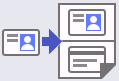 [2 in 1 ID Copy]
Level 2 | Descriptions |
|---|---|
2 in 1 ID Copy | Copy both sides of an identification card onto one page. |