

Home > Scan > Scan Using the Scan Button on Your Machine > Scan Documents as a Single PDF File


Scan Documents as a Single PDF File
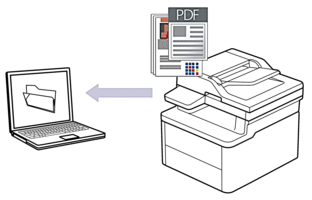
To scan from your machine:
You must select your machine using Brother iPrint&Scan.
Use Brother iPrint&Scan to change scan settings, such as the file type and file storage location.
For more information, see Related Information: Change the Scan Button Settings from Brother iPrint&Scan.
To scan from your computer:
See Related Information: Scan Using Brother iPrint&Scan (Windows/Mac).

- Press .
- If the machine is connected over the network, select the computer name where you want to send data.
If the LCD prompts you to enter a PIN for the computer, enter the four-digit PIN on the LCD, and then press [OK].
- To change the settings, press
 [Options], and then select the scan settings you want to change. If you use the default settings, skip this step. Available options may differ depending on your model and settings.
- [2-sided Scan]
- [Scan Settings]
- [Colour Setting]
- [Resolution]
- [File Type]
- [Document Size]
- [Brightness]
- [Contrast]
- [Auto Deskew]
- [Skip Blank Page]
- [Skip Blank Page Sensitivity]
- [Remove Background Colour]
- [Margin Settings]
- [Moire Reduction]
- [Colour/Grey TIFF Compress]
- [B&W TIFF Compress]
To change scan settings, a computer with the Brother iPrint&Scan software installed must be connected to your machine.
If your machine displays the [OK] button, press [OK].
To save the settings as a shortcut, press [Save as Shortcut].
- Press [Start].The machine starts scanning. If using the machine's scanner glass, follow the touchscreen instructions to complete the scanning job.