

Home > Introduction to Your Machine > Touchscreen LCD Overview


Touchscreen LCD Overview
MFC-J5010DW
| Using your finger, press |


You can switch Home screens by pressing  or
or  .
.
From the Home screens, you can access the various settings.
Home Screen
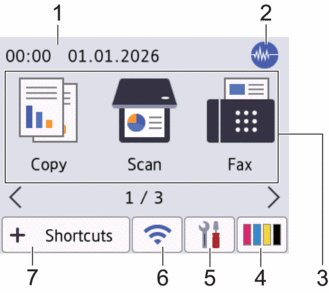
This screen shows the machine’s status when the machine is idle. When displayed, it indicates that your machine is ready for the next command.
- Date & Time
Displays the date and time set on the machine.
 Quiet Mode
 This icon appears when the [Quiet Mode] setting is set to [On].
The Quiet Mode setting can reduce printing noise. When Quiet Mode is turned on, the print speed becomes slower.
- Modes:
Press to switch to each mode.
- [Copy]
- [Scan]
- [Fax]
- [Web]
- [Apps]
- [USB]
- [Download Software]
- [Print Head Cleaning]
 [Ink]
[Ink] Displays the approximate available ink volume. Press to access the [Ink] menu.
When an ink cartridge is near the end of its life or having a problem, an error icon is displayed on the ink color indicator.
 [Settings]
 Press to access the [Settings] menu.
 Wireless Status
 Each icon in the following table shows the wireless network status:

The WLAN setting is disabled on your machine.
Press this button to configure wireless settings. For more detailed information, see the Quick Setup Guide.
The wireless network is connected.
A three-level indicator in each of the Home screens displays the current wireless signal strength.

Cannot connect to the wireless network using the configured wireless settings.

The WLAN setting is enabled on your machine, but wireless settings are not configured.

You can configure wireless settings by pressing the Wireless Status button.
 [Shortcuts]
 Create Shortcuts for frequently-used operations, such as scanning or copying.
- Three Shortcuts tabs are available with six Shortcuts on each tab.
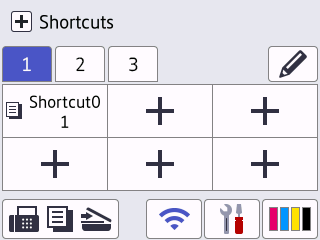
- Press
 , displayed at the bottom of the screen to access the Home Screens.
- Information icon
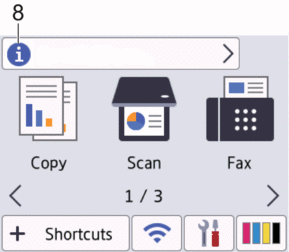
New details appear in the information bar when:
- [Message from Brother] is set to [On].
- The [Update Method] option for the [Firmware Update Setup] setting is set to [Auto Check].
(An internet connection is needed, and data rates may apply.)
Press
 to view the details.
 - Warning icon
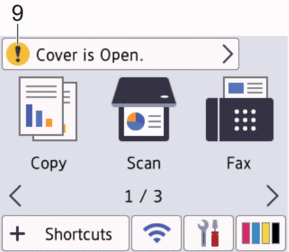
The warning icon
 appears when there is an error or maintenance message; press to view the details, and then press
  to return to the Home screen.
- IMPORTANT
-
DO NOT press the LCD with a sharp object such as a pen or stylus. It may damage the machine.
- NOTE
-
DO NOT touch the LCD immediately after plugging in the power cord or turning on the machine. Doing this may cause an error.
This product adopts the font of ARPHIC TECHNOLOGY CO., LTD.
MFC-J5110DW/MFC-J5115DW
| Swipe the LCD to see all available options. |
Your machine has eight tabbed screens (referred to as Home screens). Each Home screen can hold up to eight icons which can be used for functions, machine settings and shortcuts. A total of 64 icons can be placed on the Home screens as needed.
The Main Home screen can be selected from the Home screens.
Use the [Admin Settings] menu to rename the name of the tabs and rearrange the icons.
 icon appears on the LCD. You must unlock the machine to change the settings.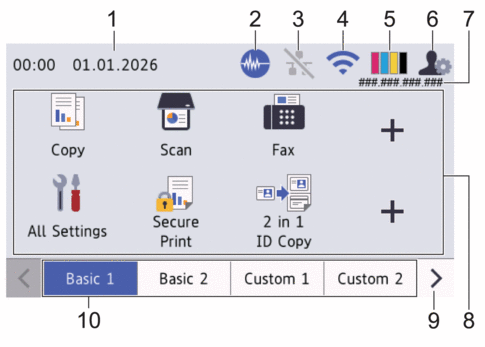
Date & Time
Displays the date and time set on the machine.
This area is also used to display error or maintenance messages.
- Quiet Mode
This icon appears when the [Quiet Mode] setting is set to [On].
The Quiet Mode setting can reduce printing noise. When Quiet Mode is turned on, the print speed becomes slower.
 Wired LAN Status
 Each icon in the following table shows the wired network status:

The Wired LAN setting is disabled on your machine.
Press this button to configure Wired LAN settings.
The Wired network is connected.

The Wired LAN setting is enabled on your machine, but not connected to the network.
- Wireless Status
Each icon in the following table shows the wireless network status:
The WLAN setting is disabled on your machine.
Press this button to configure wireless settings. For more detailed information, see the Quick Setup Guide.
The wireless network is connected.
A three-level indicator in each of the Home screens displays the current wireless signal strength.
Cannot connect to the wireless network using the configured wireless settings.
The WLAN setting is enabled on your machine, but wireless settings are not configured.
You can configure wireless settings by pressing the Wireless Status button.
- [Ink]
Displays the approximate available ink volume. Press to access the [Ink] menu.
When an ink cartridge is near the end of its life or having a problem, an error icon is displayed on the ink color indicator.
 Admin Settings
 Press to access the [Admin Settings] menu.
If required, enter the password you use to manage this machine, and then press [OK].IP Address
If the IP Address setting in the Display Information menu has been turned on, your machine's IP Address appears on the Home screens.
Function Icons, Setting Icons, and Shortcut Icons
Press to access the machine's settings menu and basic functions. The available features vary depending on your model.
- [Copy]
- [Scan]
- [Fax]
- [All Settings]
- [Secure Print]
- [2 in 1 ID Copy]
- [USB]
- [Web]
- [Apps]
- [Eco Mode]
- [Download Software]
- [Print Head Cleaning]
- (Shortcuts)
Create Shortcuts for frequently-used operations, such as scanning or copying.
Tabs Scroll Buttons
Press to scroll through the Home tabs.
Home Tabs
Press to display the screen for the Home.
- Information icon
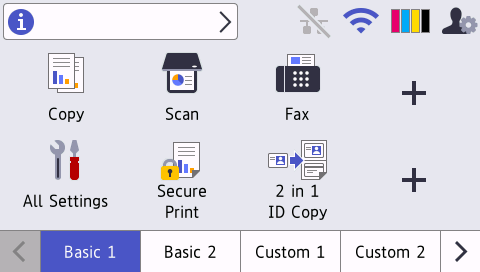
New details appear in the information bar when:
- [Message from Brother] is set to [On].
- The [Update Method] option for the [Firmware Update Setup] setting is set to [Auto Check].
(An internet connection is needed, and data rates may apply.)
Press
to view the details. - Warning icon
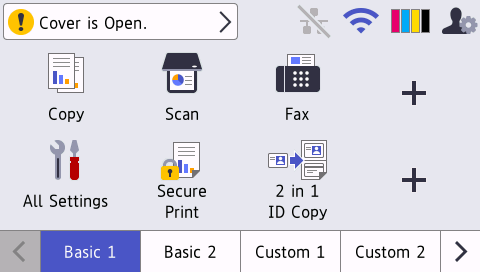
The warning icon
appears when there is an error or maintenance message. Press the message area to view it, and then press to return to the Main Home screen.
- IMPORTANT
-
DO NOT press the LCD with a sharp object such as a pen or stylus. It may damage the machine.
- NOTE
-
DO NOT touch the LCD immediately after plugging in the power cord or turning on the machine. Doing this may cause an error.
This product adopts the font of ARPHIC TECHNOLOGY CO., LTD.