


| | |
| 1 | Turn the power of the machine ON. | ||||
| 2 | From the Apple menu, choose System Preferences. | ||||
| 3 | Click Print & Fax. | ||||
| 4 | Click + button to add your machine. | ||||
| 5 | Choose IP. 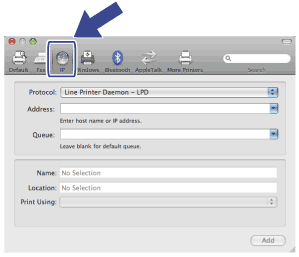 | ||||
| 6 | Choose Line Printer Daemon-LPD from the Protocol list. | ||||
| 7 | Enter the IP address of the printer into the Address box. 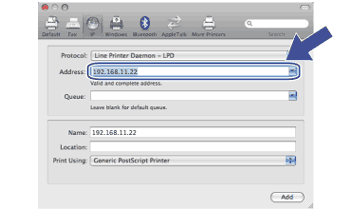  Note Note
| ||||
| 8 | From the Print Using pop-up menu choose Select a driver to use, and then from the printer model scrolling list choose your model. For example, choose Brother MFC-XXXX BR-Script3, and then click Add. 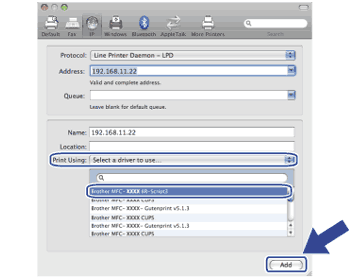 | ||||
| 9 | From the Default Printer pop-up menu choose your model to set as the default printer. The printer is now ready. 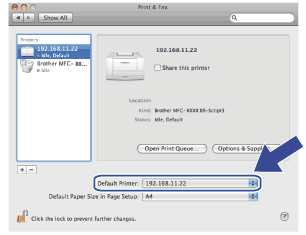 |
| | |