


| | |
| 1 | Turn the power of the machine ON. | ||||
| 2 | From the Go menu, choose Applications. | ||||
| 3 | Open the Utilities folder. | ||||
| 4 | Double click the Printer Setup Utility icon. (Mac OS X 10.2.x users, click the Print Center icon.) | ||||
| 5 | Click Add. | ||||
| 6 | (Mac OS X 10.3.9) Choose IP Printing. (Mac OS X 10.4.x) Choose IP Printer. (Mac OS X 10.3.9)  (Mac OS X 10.4.x) 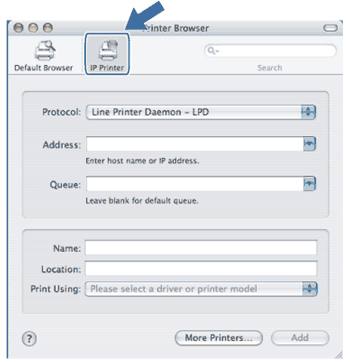 | ||||
| 7 | (Mac OS X 10.3.9) Enter the IP address of the printer into the Printer Address box. (Mac OS X 10.4.x) Enter the IP address of the printer into the Address box. (Mac OS X 10.3.9) 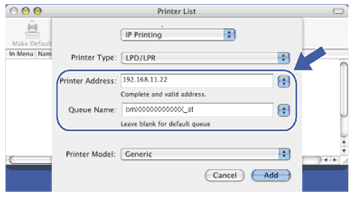 (Mac OS X 10.4.x) 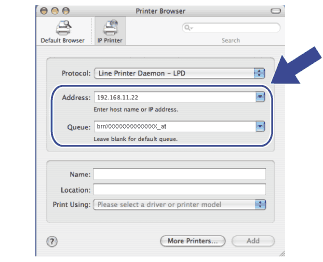  Note Note
| ||||
| 8 | From the Printer Model pull-down list choose your model. For example, choose Brother MFC-XXXX BR-Script3. (Mac OS X 10.3.9) 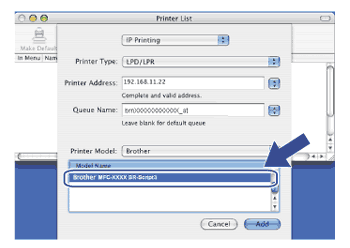 (Mac OS X 10.4.x) 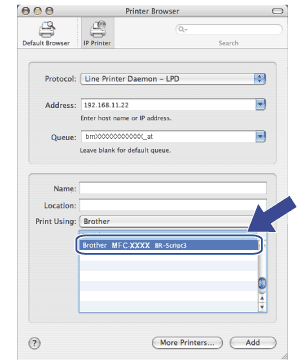 | ||||
| 9 | Click Add and the printer will be available from the Printer List. The machine is now ready to print. |
| | |