



Copy on One Side of the Paper (1-sided)
DCP-L3528CDW
- Make sure you have loaded the correct size paper in the paper tray.
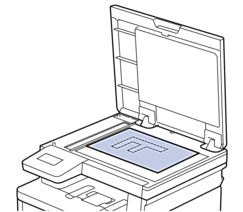
- Place the document face down on the scanner glass.
- Press
 or
or  to enter the number of copies you want.
 The LCD displays:

- Press 启动黑白 or 启动彩色.
DCP-L3568CDW/MFC-L3768CDW
- Make sure you have loaded the correct size paper in the paper tray.
- Do one of the following:
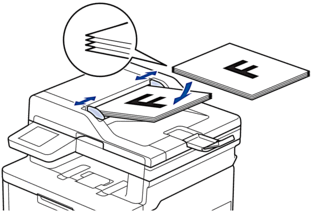
- Place the document face up in the ADF.
(If you are copying multiple pages, we recommend using the ADF.)
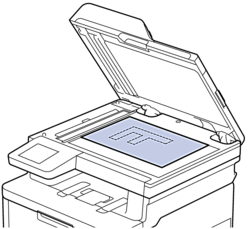
- Place the document face down on the scanner glass.
- NOTE
-
For important or fragile documents, use the machine’s scanner glass.
- Press
 [Copy]. The LCD displays: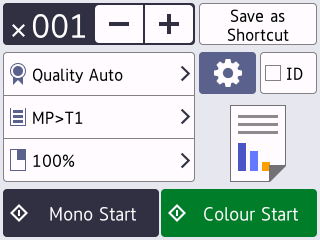
- Change the copy settings, if needed.
 (Number of copies)
 Enter the number of copies in one of the following ways:
- Press
 or
or  on the LCD.
 - Press to display a numeric keypad on the LCD, and then enter the number of copies. Press [OK].
 [Options]
 Press
to change the copy settings for the next copy only. - When finished, press [OK]. (If the [OK] button is displayed.)
- After you have finished choosing new options, you can save them by pressing the [Save as Shortcut] button.

Current setting
Press the following display area to change these settings for the next copy only. The icon displayed varies depending on the model.
 [Quality]
  [Tray Use]
  [Enlarge/Reduce]
- Press [Colour Start] or [Mono Start].To stop copying, press
 .
.
Did you find the information you needed?