You can import ASCII text files (*.csv), vCards (electronic business cards) or Remote Setup Dial Data into your Address Book.
Importing an ASCII text file
| 1 | Do one of the following: | • | From the Address Book, click File, Import, then Text. | | • | From the Address Book, click File, Import, then vCard and go to step 5. | | • | From the Address Book, click File, Import, then Remote Setup Dial Data and go to step 5. |
|
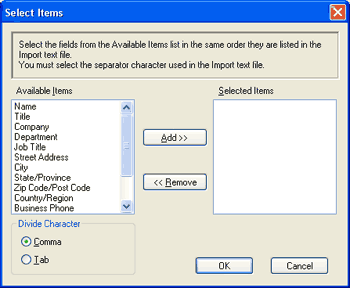
| 2 | From the Available Items column, choose the data fields you want to import, and click Add >>.  Note | | From the Available Items list choose the fields in the same order they are listed in the import text file. |
|
| 3 | Choose Tab or Comma based on the file format you are importing from Divide Character. |
| 4 | Click OK to import the data. |
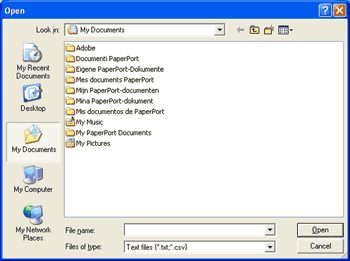
| 5 | Enter the name of the file, and then click Open. |
Note
| | If you chose a text file in step 1, Files of type: will be Text file (*.txt, *.csv). |