


| | |
 Note
Note| • | Please use the BRAdmin Light utility version that was supplied on the CD-ROM of your Brother product. You can also download the latest Brother BRAdmin Light utility version from http://solutions.brother.com. |
| • | If you require more advanced printer management, use the latest Brother BRAdmin Professional 3 utility that is available as a download from http://solutions.brother.com. This utility is only available for Windows® users. |
| • | If you are using a firewall function of anti-spyware or antivirus applications, temporarily disable them. Once you are sure that you can print, re-enable them. |
| • | Node Name: Node Name appears in current BRAdmin Light window. The default Node Name of the print server in the machine is “BRNxxxxxxxxxxxx”. (“xxxxxxxxxxxx” is your machine’s MAC Address / Ethernet Address.) |
| • | By default, no password is required. To set a password for, double-click the device you want to set a password. Click Control tab, and then click Change Password. Enter the new password. |
| 1 | Start the BRAdmin Light utility. | ||||
| 2 | BRAdmin Light will search for new devices automatically. | ||||
| 3 | Double-click the unconfigured device. Windows® 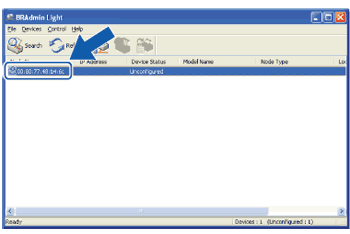 Macintosh 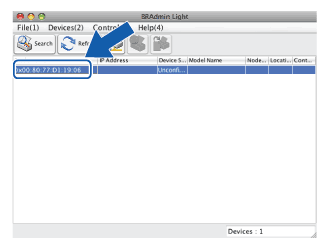 Note Note
| ||||
| 4 | Choose STATIC from Boot Method. Enter the IP Address, Subnet Mask and Gateway (if needed) of your print server. Windows® 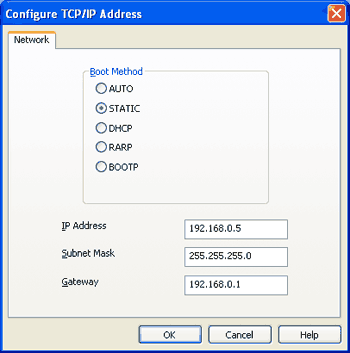 Macintosh 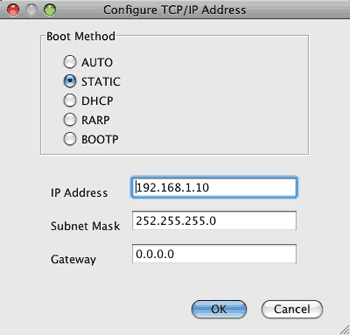 | ||||
| 5 | Click OK. | ||||
| 6 | With the correctly programmed IP address, you will see the Brother print server in the device list. |
| | |