

Home > Introduction to Your Brother Machine > Control Panel Overview


Control Panel Overview
DSmobile DS-640e/DSmobile DS-740De
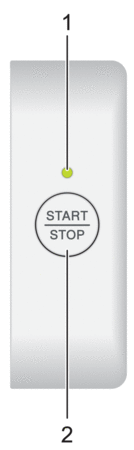
- Power/Scan LED
- Indicates the machine's status.

The machine is in Ready Mode. 
(blinking)
- The machine is scanning.
- Remote Setup is in progress.
- The machine is starting up.

(blinking)
An error has occurred.
- START/STOP Button
- Press to start or stop scanning.
DSmobile DS-940DWe
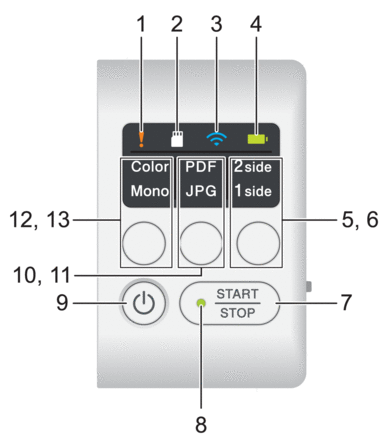
- Error LED
- It flashes when the machine detects an error.
- SD Card LED
- Indicates the microSD memory card status when the machine is in microSD Mode.

microSD memory card is inserted. 

(blinking)
microSD memory card is not inserted. 
The machine is not in microSD Mode.
- Wi-Fi LED
- Indicates the wireless network status when the machine is in Wi-Fi Mode.

Wireless network is connected. 
(blinking)
Your machine is connecting to the wireless network. (blinking slowly)
Wi-Fi settings are not configured. 
The machine is not in Wi-Fi Mode.
- Battery LED
- Indicates the rechargeable Li-ion battery status.
- When the machine is connected to the computer using a USB cable(When the machine is turned on.)
 (When the machine is turned off.)

Battery is fully charged. 
(blinking)
The machine is charging the battery. 
(blinking)
Battery Low. The machine is charging the battery. 
A battery error has occurred. - When the machine is not connected to the computer using a USB cable (The battery does not charge)
The machine is turned on and the battery power is consumed. 
Battery Low. The machine is turned on and the battery power is consumed. The machine is turned off or the battery has no remaining power. A battery error has occurred.
- 2side/1side LED
- Indicates the scan option selected in microSD Mode.
- 2side/1side Switching Button
- Press to change the scan mode (2-sided Scan or single-sided Scan) in microSD Mode.
- START/STOP Button
- Press to start or stop scanning.
- Power/Scan LED
- Indicates the machine's status.
The machine is in Ready Mode. (blinking)
- The machine is scanning.
- Remote Setup is in progress.
- The machine is preparing to charge the battery.
- The machine is starting up.
- The machine is shutting down.
- Power Button
- Press
 to turn the machine on.Press and hold to turn the machine off.
 If the machine is connected to the computer using a USB cable and the battery is not fully charged, the machine turns off and goes into Battery Charge Mode when you press and hold. (The Battery LED blinks.)
The machine turns off after the battery is fully charged or when the USB cable is disconnected from the machine or computer.
- PDF/JPEG LED
- Indicates the scan option selected in microSD Mode.
- PDF/JPEG Switching Button
- Press to change the scanning file format (PDF or JPEG) in microSD Mode.
- Color/Mono LED
- Indicates the scan option selected in microSD Mode.
- Colour/Mono Switching Button
- Press to change the scan mode (colour or monochrome) in microSD Mode.
Did you find the information you needed?