

Home > Settings > Edit Settings > P-touch Template Settings > Specify the Barcode Scanner Settings (Windows)


Specify the Barcode Scanner Settings (Windows)
Before connecting the barcode scanner to the device, specify the barcode scanner settings using the P-touch Template Settings in the BRConfiguration Tool.

- Connect the device to your computer with a USB cable.
To include multiple object data on a label, search the database and print, or print immediately after reading a barcode, you must adjust P-touch Template settings. By customizing barcode scanner settings, you can attach a command to the string read by the scanner that the barcode scanner sends to the device.
To put multiple object data on a label, or if you want to search the database and print: Enter "\u0009" in the Delimiter field.
To print immediately after reading a barcode: Enter "^FF" in the Trigger for P-touch Template printing field as Command character.
- Select one or more devices.
- Click the Edit device settings option under Settings in the right pane.No settings are displayed if you select multiple devices or if there is a connection error.
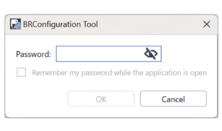
- Type the password in the Password: field, and then click OK.The password is required to connect to the network.
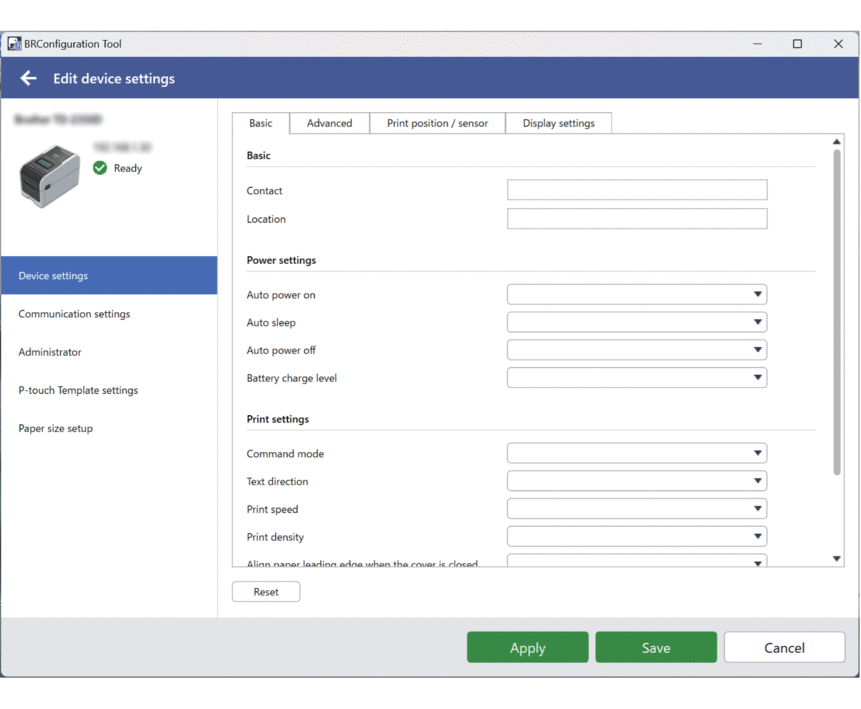
- Click the P-touch Template settings menu in the left pane.
- Select the settings you want.
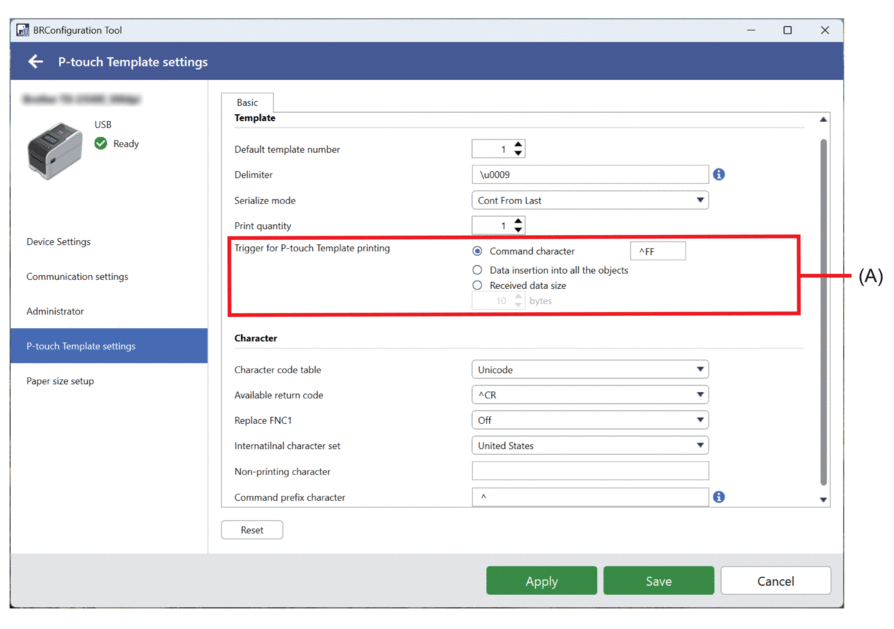
- By default, printing begins when the code "^FF" is scanned from a barcode using a barcode scanner. (This can be changed with the settings highlighted by (A) in the previous image.)
If the Received data size option is selected with the number of bytes setting, the template is printed after the specified number of bytes have been scanned.
- Because the print mode setting returns to raster mode each time you print from the computer, you must change the setting to template mode again.
- If you turn off the device and then turn it on again, the device starts up in template mode.
- Do one of the following:
To apply the settings to the selected devices:
- Click Apply.
To save the settings file to a folder:
- Click Save.
- Specify the destination folder path in the Save to: field.
- Enter the encryption password in the File password: field if you selected Encrypt.
- Click OK.