



Add or Delete Files on Your Devices
The BRConfiguration Tool allows you to add or delete files, such as templates, databases, fonts or images, on the devices you select.

Connect the device to your computer with a USB cable.
- Select one or more devices.
- Click the Add/Remove files option under Settings in the right pane.
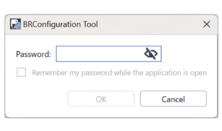
- Type the password in the Password: field, and then click OK.The password is required to connect to the network.
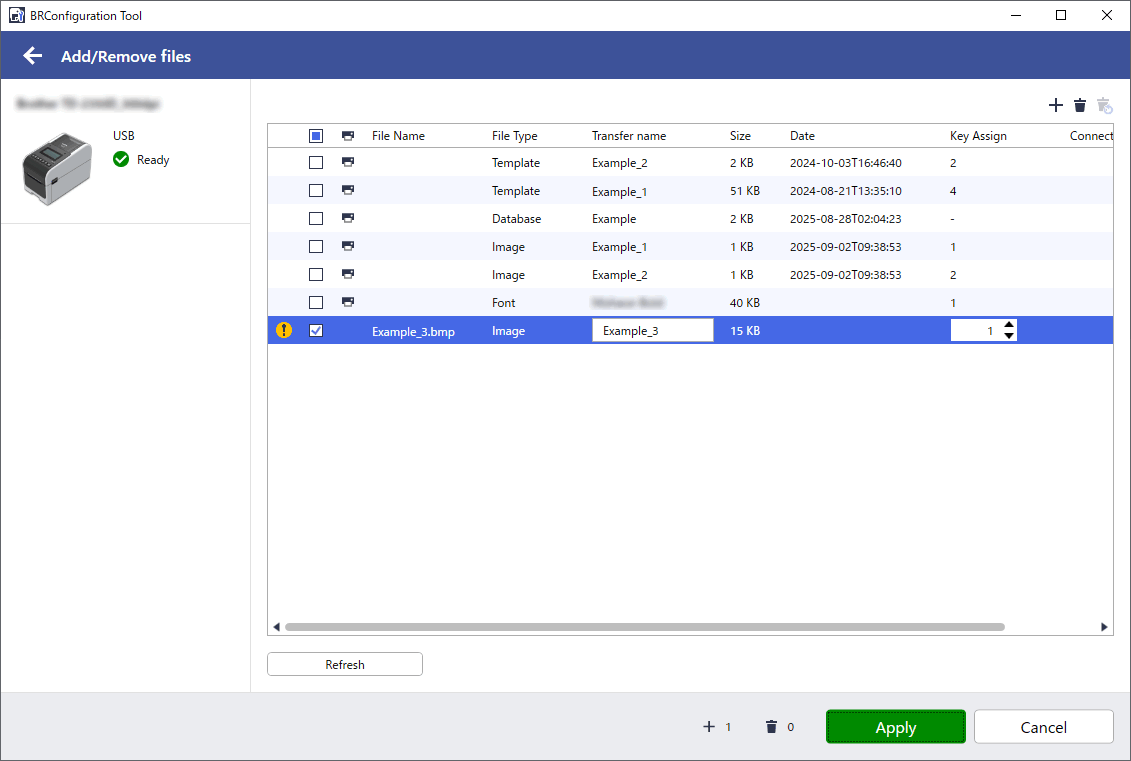
If multiple devices are selected, the following information appears:
- Shared files (templates, databases, fonts, and images available on all these devices).
File information for these files (file sizes, file transfer names, and Key Assign numbers).
The following icons may appear in the list:

Warning

Files received from devices
- Do one of following:
To add a file, click
 . The following data and file types are supported:
Data Type File Type Template *.lbx *.lbxs Image *.bmp *.pcx Database *.csv Font *.otf *.ttf To delete a file, select the file and click
 .
. Click
 to cancel the deletion.
- To change the Key Assign number, that is, the file location in the device, select the file you want, and then select the Key Assign number.A Key Assign number is a numeric identifier assigned to templates and other files stored in the device's memory.
- NOTE
-
- Database files are never assigned a Key Assign number.
- If you type a Key Assign number that is assigned to a file or a template already saved on the device, the new file will overwrite the old file with that Key Assign number.
- To change a file transfer name, select the file you want and then type the new name.
- NOTE
-
- The maximum number of characters allowed for file names depends on your model.
- If you type a name that is used by a template already saved on the device, the new template will overwrite the old template with that name.
- Click Apply.
Did you find the information you needed?