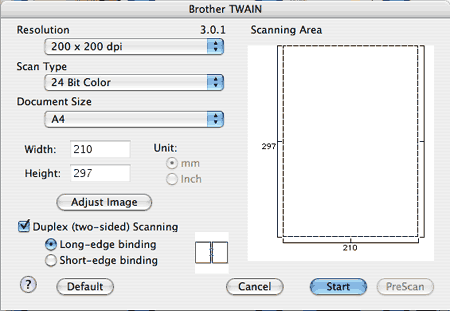
You can scan a whole page, or scan a portion after pre-scanning the document.
Scanning a whole page
| 1 | Put the document face up in the ADF, or face down on the scanner glass. |
| 2 | Adjust the following settings, if needed, in the Scanner Setup dialog box: | • | Resolution | | • | Scan Type | | • | Document Size | | • | Brightness | | • | Contrast |
|
| 3 | Click Start. When scanning has finished, the image appears in your graphics application. |
Scanning a duplex document (MFC-9840CDW only)
| 1 | Put the document face up in the ADF. |
| 2 | Check Duplex (Two-sided) Scanning and choose Long-edge binding or Short-edge binding. |
| 3 | Adjust the following settings, if needed, in the Scanner Setup dialog box: | • | Resolution | | • | Scan Type | | • | Document Size | | • | Brightness | | • | Contrast |
|
| 4 | Click Start. |

Note
| • | You cannot adjust the scanning area. |
| • | Duplex scan is supported by the MFC-9840CDW only. |
| • | Duplex scan is not available for legal size paper. |
| • | Duplex scan is available from the ADF only. |