| | |
 Note
Note| • | Please use the BRAdmin Light utility version that was supplied on the CD-ROM of your Brother product. You can also download the latest Brother BRAdmin Light utility version from http://solutions.brother.com. |
| • | If you require more advanced printer management, use the latest Brother BRAdmin Professional utility that is available as a download from http://solutions.brother.com. This utility is only available for Windows® users. |
| • | If you are using personal Firewall software (e.g. Windows Firewall), disable it. Once you are sure that you can print, re-start your personal Firewall software. |
| • | Node name: Node name appears in current BRAdmin Light. The default Node name of the network card in the printer is “BRNxxxxxx” (“xxxxxx” is the last six digits of Ethernet address.). |
| • | The default password for Brother print server is “access”. |
| 1 | Start the BRAdmin Light utility. | ||||
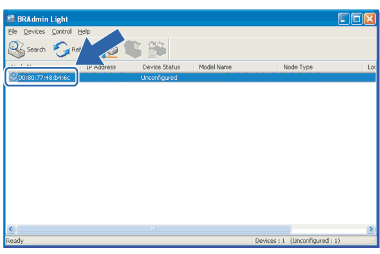
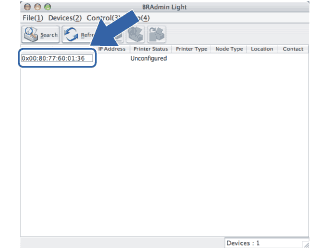
| 2 | BRAdmin Light will search for new devices automatically. | ||||
| 3 | Double-click the unconfigured device. Note
| ||||
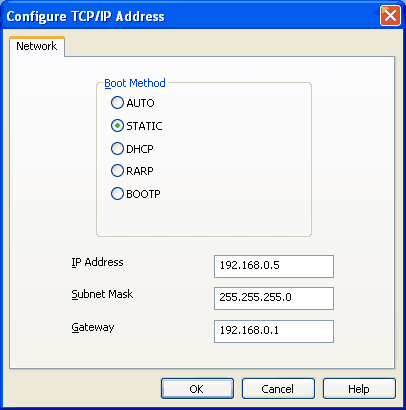
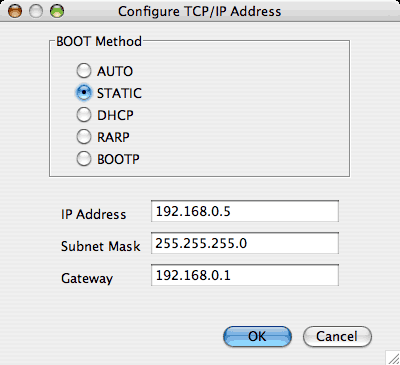
| 4 | Choose Static from Boot Method. Enter the IP address, Subnet Mask and Gateway (if needed) of your print server. | ||||
| 5 | Click OK. | ||||
| 6 | With the correctly programmed IP address, you will see the Brother print server in the device list. |
| | |