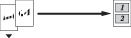
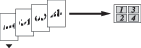
The N in 1 copy feature can help you save paper by letting you copy two or four pages onto one printed page.
Important
| • | Please make sure paper size is set to Letter or A4. |
| • | You cannot use the Enlarge/Reduce setting with the N in 1. |
| • | N in 1 color copies are not available. |
| • | (P) means Portrait and (L) means Landscape. |
| 1 | Make sure you are in Copy mode  . |
| 2 | Load your document. |
| 3 | Use the dial pad to enter the number of copies (up to 99). |
| 4 | Press Options or Copy Options and  or  to select Page Layout. Press OK. |
| 5 | Press or to select Off(1 in 1), 2 in 1 (P), 2 in 1 (L), 4 in 1 (P), or 4 in 1 (L). Press OK. |
| 6 | Press Black Start to scan the document. |

Note
| | If photo paper is selected as the paper type setting for N in 1 copies, the images will be printed as if plain paper had been selected. |
Place your document face down in the direction shown below:
| • | 2 in 1 (P) |
| • | 2 in 1 (L) |
| • | 4 in 1 (P) |
| • | 4 in 1 (L) |