

Home > Troubleshooting > Printer Jam or Paper Jam > Paper is Jammed in the Front of the Machine (Jam Front)


Paper is Jammed in the Front of the Machine (Jam Front)
If the LCD displays [Jam Front] or [Repeat Jam Front], follow these steps:
- Unplug the machine from the AC power outlet.
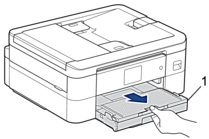
- Pull the paper tray (1) completely out of the machine as shown by the arrow.
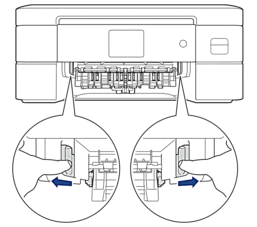
- Pull the two green levers inside the machine to release the jammed paper.
- CAUTION
- The cutter installed in the machine has sharp edges, which may cause an injury. Keep your hands away from the cutter located behind the Paper Feed Rollers.
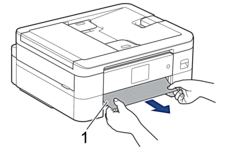
- Slowly pull out the jammed paper (1).

If your LCD error message was [Repeat Jam Front], do the following:
- Make sure you look carefully inside (1) for any scraps of paper.
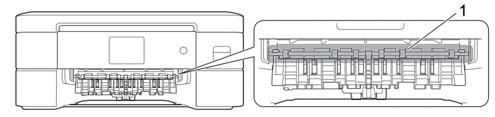
- Squeeze both levers (1), and then open the Jam Clear Cover at the back of the machine.
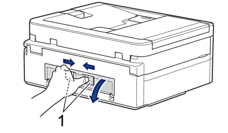
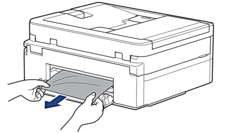
- Slowly pull the jammed paper out of the machine.
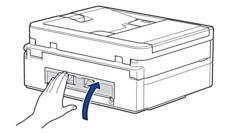
- Close the Jam Clear Cover. Make sure the cover is closed completely.
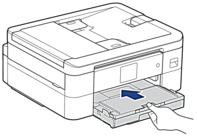
- Slowly push the paper tray completely into the machine.
- Pull out the paper support (1) until it locks into place, and then unfold the paper support flap (2).

- Reconnect the power cord.
Did you find the information you needed?