

Home > Print > Print from Your Computer (Windows) > Print on Both Sides of the Paper (Windows)


Print on Both Sides of the Paper (Windows)
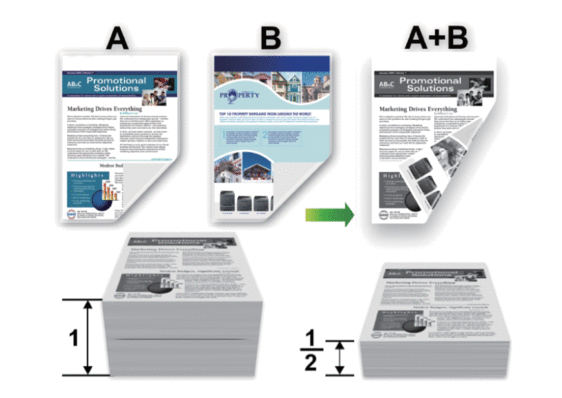
- If paper is curled, straighten it and put it back in the paper tray.
- Use regular paper or thin paper. DO NOT use bond paper.
- If the paper is too thin, it may wrinkle.
- When you use the manual 2-sided printing function, it is possible there may be paper jams or poor print quality.
- Select the print command in your application.
- Select your model's name, and then click the printer's properties or preferences button.The printer driver window appears.
- In the Orientation field, select the Portrait or Landscape option to set the printout orientation.

If your application contains a similar setting, we recommend that you set the printout orientation using the application.
- Click the 2-sided / Booklet drop-down list, and then select 2-sided.
- Click the 2-sided Settings button.
- Select one of the options from the 2-sided Type menu.When 2-sided is selected, four types of 2-sided binding are available for each orientation:Option for PortraitDescriptionLong Edge (Left)
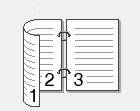 Long Edge (Right)
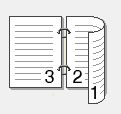 Short Edge (Top)
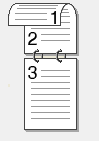 Short Edge (Bottom)
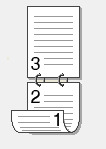 Option for LandscapeDescriptionLong Edge (Top)
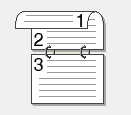 Long Edge (Bottom)
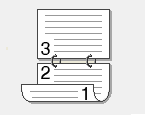 Short Edge (Right)
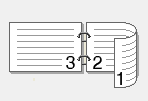 Short Edge (Left)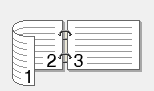
- Select the Binding Offset checkbox to specify the offset for binding in inches or millimetres.
- Click OK.
- Change other printer settings, if needed.
- Click OK.
- Complete your print operation.
If the paper is not feeding correctly, it may be curled. Remove the paper, straighten it, and put it back in the paper tray.
Did you find the information you needed?