

Home > Print > Print from Your Computer (Windows) > Change the Default Print Settings (Windows) > Configure the Optional Tray Settings (Windows)


Configure the Optional Tray Settings (Windows)
Access your machine's Properties to auto-detect your machine's Optional Tray and check the machine's serial number.
The printer driver automatically detects the Optional Tray during the driver installation. If you added the Optional Tray after the driver installation, follow these steps:
- Hold down the
 key and press the
  key on the computer's keyboard to launch Run.
 - Type "control printers" in the Open: field and click OK.
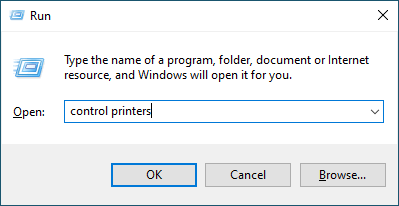 The Devices and Printers window appears.
 If the Devices and Printers window does not appear, click .
 - Right-click your model's icon, and then select Printer properties. (If the printer driver options appear, select your printer driver.)The printer properties dialog box appears.
- Click the Device Settings tab.
- Click the Auto Detect button.
The Optional Tray and the machine's serial number are automatically detected.
- Click the Apply button.
- Close the printer properties dialog box.
The Auto Detect function is not available under the following machine conditions:
- The machine is turned off.
- The machine is shared via a Print Server.
The machine and your computer are not connected.
Did you find the information you needed?