


Copy a Document
- Make sure you have loaded the correct size paper in the paper tray.
- Press
 [Copy]. The touchscreen displays: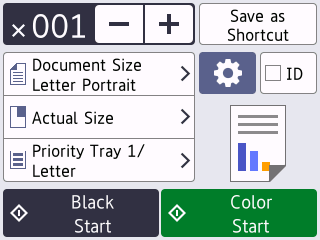
- Change the copy settings, if needed.

When you load paper other than Letter size plain paper, you must change the [Paper Size] and [Paper Type] settings by pressing
 [Options]. OptionDescription
 (No. of Copies)
 Enter the number of copies in one of the following ways:
- Press - or + on the touchscreen.
- Press to display the keyboard on the touchscreen, and then enter the number of copies using the touchscreen keyboard. Press OK.
(Options)Press
[Options] to change the copy settings for the next copy only. When you have finished changing settings, press OK.
IDTo make an ID card copy with the [2in1 ID Vertical] layout, select the [ID] checkbox.Current setting indications
Press the area indicated on the screen to change copy settings for the next copy only.
 Document Size
  Enlarge/Reduce
  Select Tray (MFC-J6960DW/MFC-J6975DW)
  Paper Size (MFC-J6560DW)
- After you have finished selecting new options, you can save them by pressing [Save as Shortcut].
To make this a One Touch Shortcut, you must select the [Color Copy] or [Mono Copy] option in the shortcut. Press
, select [Color Copy] or [Mono Copy], change other settings, and then press [Save as Shortcut]. - (MFC-J6975DW) To preview the copied result before the machine starts printing, press
 and then press [Black Preview] or [Color Preview]. The machine scans the document and displays only the first page (one side) of the copied result on the LCD. If the copied result is fine, press [Start] to print it and to finish processing.
- Press [Black Start] or [Color Start].
To interrupt copying, press  .
.
. Did you find the information you needed?