

Home > Print > Print Data Directly from a USB Flash Drive > Print Photos Directly from a USB Flash Drive > Print Settings for Photos


Print Settings for Photos
 [Print Settings] to display the settings shown in the table.
 | Option | Description |
|---|
| Print Quality | Select the print resolution for your type of document. |
| (MFC-J6960DW/MFC-J6975DW) Select Tray | Select the tray. |
| Paper Type | Select the paper type. |
| Paper Size | Select the paper size. |
| Print Layout | Select the print layout. |
| Brightness | Adjust the brightness. |
| Contrast | Adjust the contrast. Increasing the contrast will make an image look sharper and more vivid. |
| Cropping | Crop the image around the margin to fit the paper size or print size.
Cropping: On 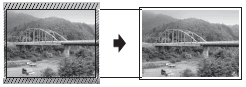 Cropping: Off 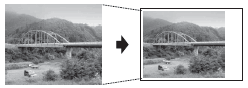 |
| Borderless | Expand the printable area to fit the edges of the paper. Printing time will be slower. |
| Print Date | Print the date on your photo. The date will be printed in the lower-right corner. To use this setting, the photo data must include the date. |
| Set New Default | Save the print settings you use most often by setting them as the defaults. |
| Factory Reset | Restore any changed print settings back to the factory settings. |