


Copy on Both Sides of the Paper (2-sided Copy)
- You must choose a 2-sided copy layout from the following options before you can start 2-sided copying.
- The layout of your original document determines which 2-sided copy layout you should choose.
(MFC-J6960DW/MFC-J6975DW)
You can copy 2-sided documents automatically up to Ledger size using the ADF.
(MFC-J6560DW)
When you manually make 2-sided copies from a 2-sided document, use the scanner glass.You can use only Letter, A4, Executive, A5, Ledger, A3, Legal, Folio, Mexico Legal, or India Legal size plain paper.
- Portrait
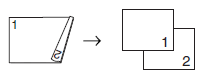
- 1–sided to 2–sided (Long Edge Flip)
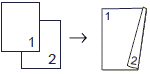
- 1–sided to 2–sided (Short Edge Flip)
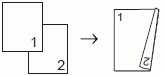
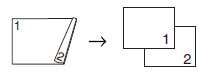
- 2–sided to 2–sided
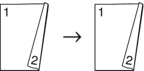
- 2–sided to 1–sided (Long Edge Flip) (supported models only)
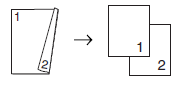
- 2–sided to 1–sided (Short Edge Flip) (supported models only)
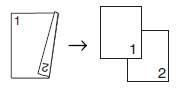
- Landscape
- 1–sided to 2–sided (Long Edge Flip)
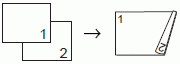
- 1–sided to 2–sided (Short Edge Flip)
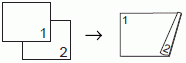
- 2–sided to 2–sided
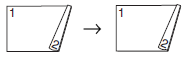
- 2–sided to 1–sided (Long Edge Flip) (supported models only)
- 2–sided to 1–sided (Short Edge Flip) (supported models only)
- Press
 [Copy].
 - Enter the number of copies in one of the following ways:
- Press [-] or [+] on the touchscreen.
- Press
 to display the keyboard on the touchscreen, and then enter the number of copies using the touchscreen keyboard. Press [OK].
- To sort multiple copies, press
 .
. - Press
 or
or  to display the [2-sided Copy] option, and then press it.
 - Do one of the following:
To make 2-sided copies from a 1-sided document, follow these steps:
- To change the layout options, press [Layout], and then press [Long Edge Flip] or [Short Edge Flip].
- Press [1-sided⇒2-sided].
(MFC-J6960DW/MFC-J6975DW)
To make 2-sided copies of a 2-sided document automatically, press [2-sided⇒2-sided].
 Load your document in the ADF to use the automatic 2-sided copy feature.
(MFC-J6560DW)
To make 2-sided copies of a 2-sided document manually, press [2-sided⇒2-sided].
Use the scanner glass to make 2-sided copies of a 2-sided document manually.(MFC-J6960DW/MFC-J6975DW)
To make 1-sided copies from a 2-sided document, follow these steps:
- To change the layout options, press [Layout], and then press [Long Edge Flip] or [Short Edge Flip].
- Press or to display the [2-sided⇒1-sided] option, and then press it.
Load your document in the ADF to use the automatic 2-sided copy feature.
- Review your settings on the touchscreen, and then press [OK].(MFC-J6975DW) To preview the copied result before the machine starts printing, press
 and then press [Black Preview] or [Color Preview]. The machine scans the document and displays only the first page (one side) of the copied result on the LCD. If the copied result is fine, press [Start] to print it and to finish processing.
 - Press [Black Start] or [Color Start]. If you placed the document in the ADF, the machine scans the pages and starts printing.
- If you are using the scanner glass, repeat the following steps for each page of the document:
- Place the next page on the scanner glass, and then press [Continue] to scan the page.
- After scanning all the pages, press [Finish].
DO NOT touch the printed page until it is completely ejected. The machine prints the first side, extends the paper, then retracts it to print the second side.
 , and then change settings.
 See Related Information: Change the Print Options to Improve Your Print Results.