

Home > Mobile/Web Connect > Brother Web Connect > FaxForward to Cloud or E-mail


FaxForward to Cloud or E-mail
- This feature is available only for black and white faxes.
- If you turn on this feature, you cannot use the following features:
- Memory Receive ([Fax Forward], [Fax Storage], [Forward to Network])
- [PC Fax Receive]
- If there are received faxes still in your machine's memory, you cannot turn off FaxForward.
- Use the FaxForward to Cloud feature to automatically forward incoming faxes to your accounts with the available online services.
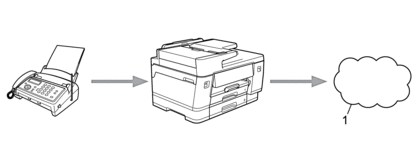
- Web Service
- Use the FaxForward to E-mail feature to automatically forward incoming faxes to an inbox as email attachments.
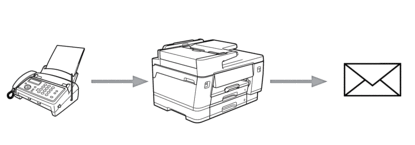
- Press
 or
or  to display [Apps]. Press [Apps].
- If information regarding the Internet connection appears on the machine’s LCD, read it, and then press [OK].
- Occasionally, updates or announcements about Brother Web Connect's features will appear on the LCD. Read the information, and then press [OK].
- Press
 or
or  to display [FaxForward to Cloud/E-mail]. Press [FaxForward to Cloud/E-mail].If information regarding [FaxForward to Cloud/E-mail] appears, read it, and then press [OK].
 - Press [On].
- Press [Forward to Cloud] or [Forward to E-mail].
- If you selected [Forward to Cloud], choose the online service you want to receive the faxes, and then specify your account name.
- If you selected [Forward to E-mail], select the email address you want to receive the faxes as email attachments.
- Follow the on-screen instructions to complete this operation.
Did you find the information you needed?