

Home > Scan > Scan Using the Scan Button on Your Machine > Save Scanned Data as an Email Attachment


Save Scanned Data as an Email Attachment
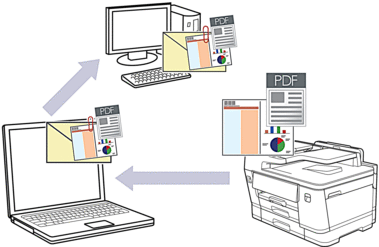
To scan from your machine:
You must first configure the Scan button on your machine, including settings such as file type and file storage location. See Related Information: Configure the Scan Button on Your Machine.
To scan from your computer:
See Related Information: Scan Using Brother iPrint&Scan (Windows/Mac).
To use this feature with your machine's Scan button, make sure you select one of these applications in Brother iPrint&Scan:
- Windows: Microsoft Outlook
- Mac: Apple Mail
For other applications and Webmail services, use the Scan to Image or Scan to File feature to scan a document, and then attach the scanned file to an email message.
- Press .
- If the machine is connected over the network, press
 or
or  to display the computer where you want to send data, and then select the computer name.
If the LCD message prompts you to enter a PIN, use the LCD to enter the four-digit PIN for the computer, and then press [OK].
- To change the settings, press
 [Options].
 To use
[Options], you must connect a computer with Brother iPrint&Scan installed to the machine. - Press .
- Select the scan settings you want to change, and then press [OK].OptionDescription2-sided Scan
(MFC-J6960DW/MFC-J6975DW)
Select the 2-sided scan mode.
Color SettingSelect the color format for your document.
ResolutionSelect the scan resolution for your document.
File TypeSelect the file format for your document.
Document SizeSelect your document size.
BrightnessSelect the brightness level.
ContrastSelect the contrast level.
Auto DeskewCorrect any skewed documents when they are scanned.
Skip Blank PageWhen On is selected, blank pages are skipped.
Skip Blank Page SensitivitySelect the sensitivity level for detecting blank pages in the scanned data. The higher the sensitivity, the easier it is for the machine to detect blank pages.
Remove Background ColorChange the amount of background color that is removed.
Margin SettingsAdjust your document's margins.
- To save the settings as a shortcut, press [Save as Shortcut]. You will be asked if you want to make this a One Touch Shortcut. Follow the LCD instructions.
- Press [Start].The machine scans the document and saves it as a file attachment. It then launches your email application and opens a new, blank email message with the scanned file attached.