Settings Dialog

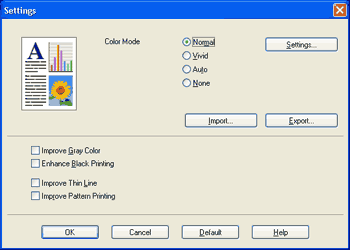
You can change the following setting by clicking Settings from the Basic tab.
Screen
•
Color Mode
The following options are available in Color Matching mode:
•
Normal
This is the default color mode.
•
Vivid
The color of all elements are adjusted to become a more vivid color.
•
Auto
The printer driver automatically selects the Color Mode type.
•
None
If you want to apply the color management settings of your application, choose this setting. The printer driver will not adjust the color.
•
Import
You can adjust the print configuration of a particular image by clicking Settings. When you have finished adjusting the image parameters, such as brightness and contrast, you can import those settings as a print configuration file. Use the Export function to create a print configuration file from the current settings.
•
Export
You can adjust the print configuration of a particular image by clicking Settings. When you have finished adjusting the image parameters, such as brightness and contrast, you can export those settings as a print configuration file. Use the Import function to load a previously exported configuration file.
•
Improve Gray Color
You can improve the image quality of a shaded area.
•
Enhance Black Printing
If a black graphic cannot be printed correctly, choose this setting.
•
Improve Thin Line
You can improve the image quality of thin lines.
•
Improve Pattern Printing
Select this option if printed fills and patterns are different from the patterns and fills you see on your computer.
•
Settings
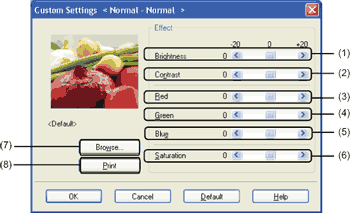
If you want to change the color settings such as brightness, contrast, intensity or saturation, click the Settings button to access more advanced settings.
Screen
•
Brightness (1)
Moving the scroll bar to the right makes your image lighter and moving the scroll bar left makes your image darker.
•
Contrast (2)
Darker sections are darker while lighter sections will be lighter as you increase the contrast.
•
Red (3)
Increase the intensity of Red in the image.
•
Green (4)
Increase the intensity of Green in the image.
•
Blue (5)
Increase the intensity of Blue in the image.
•
Saturation (6)
Increase the saturation when you wish to print a more vivid image or decrease the saturation you want to print a less vivid image.
•
Browse (7)
By clicking the Browse button, you can change the image shown in the preview window. The file must be a bitmap file.
•
Print (8)
You can print the image shown in the preview by clicking the Print button.