


| | |
| 1 | Load your document. | ||
| 2 | Start the Presto! PageManager software that was installed during the MFL-Pro Suite installation to scan a document.  Note Note | ||
| 3 | Click File, then Select Souce. | ||
| 4 | Choose the scanner you are using from the Select Souce list. Note | ||
| 5 | Click Tool, Scan Settings and uncheck Suppress Twain User Interface. Click OK. | ||
| 6 | Click Acquire Image Data. The Scanner Setup dialog box appears. | ||
| 7 | Adjust the following settings, if needed, in the Scanner Setup dialog box: 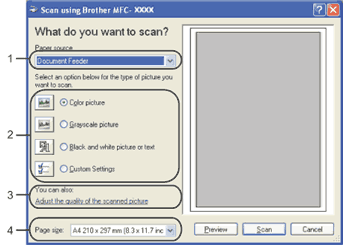 | ||
| 8 | Choose Document Feeder from the Paper source drop-down list (1). | ||
| 9 | Choose the picture type (2). | ||
| 10 | Choose the Page size from the drop-down list (4). | ||
| 11 | If you need advanced settings, click Adjust the quality of the scanned picture (3). You can choose Brightness, Contrast, Resolution and Picture type from Advanced Properties. Click OK after you choose a setting. 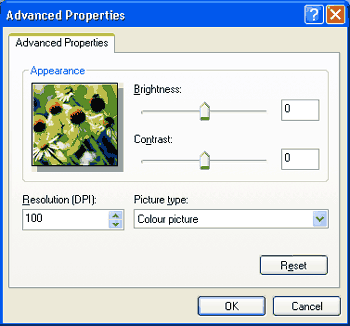 Note Note
| ||
| 12 | Click the Scan button in the Scan dialog box. The machine starts scanning the document. |
| | |