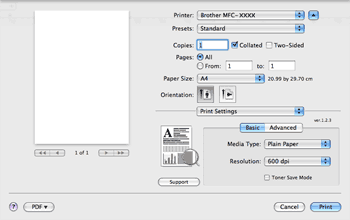
Print Settings

You can change settings by choosing a setting in the Print Settings list:
Basic tab
Screen
•
Media Type
You can change the media type to one of the following:
•
Plain Paper
•
Thin Paper
•
Thick Paper
•
Thicker Paper
•
Bond Paper
•
Transparencies
•
Envelopes
•
Env. Thick
•
Env. Thin
•
Recycled Paper
•
Resolution
You can change the resolution as follows:
•
300 dpi
•
600 dpi
•
HQ 1200
•
1200 dpi
•
Toner Save Mode
You can conserve toner using this feature. When you set Toner Save Mode to On, your prints appear lighter. The default setting is Off.
Note Note
•
We do not recommend Toner Save Mode for printing photo or greyscale images.
•
Toner Save Mode is not available for 1200 dpi or HQ 1200 resolution.
•
Reverse Print (Mac OS X 10.3.9 to 10.4.x)
Check Reverse Print to reverse the data from up to down.
•
Support
You can visit the Brother Solutions Center (http://solutions.brother.com/) and our web site for original/genuine Brother supplies by clicking the Support button.
The Brother Solutions Center is a web site offering information about your Brother product including FAQs (Frequently Asked Questions), User’s Guides, driver updates and tips for using your printer.
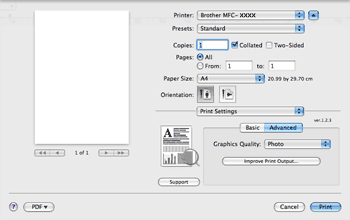
Advanced tab
Screen
•
Graphics Quality
You can change the print quality as follows:
•
Photo
This is a photograph mode (gradation priority). Choose this setting for printing photographs that have continuous gradation. You can represent soft contrasts between various shades of gray.
•
Graphics
This is a graphics mode (contrast priority). Choose this setting for printing text and figures, such as business and presentation documents. You can represent sharp contrasts between shaded areas.
•
Chart/Graph
This is the best dither pattern for business documents such as presentations, that include words, graphs or charts. It is particularly suitable for solid colours.
•
Text
This is the best mode for printing text documents.
•
Improve Print Output
This feature allows you to improve a print quality problem.
•
Reduce Paper Curl
If you choose this setting, the paper curl may be reduced.
If you are printing only a few pages, you do not need to choose this setting. Change the printer driver setting in Media Type to a thin setting.
•
Improve Toner Fixing
If you choose this setting, the toner fixing on paper may be improved. If this selection does not improve the situation enough, select Thicker Paper in Media Type settings.

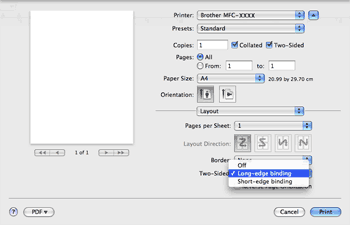
Duplex Printing

•
Use duplex unit
Select Layout.
Choose Long-edge binding or Short-edge binding in Two-Sided.
Screen
•
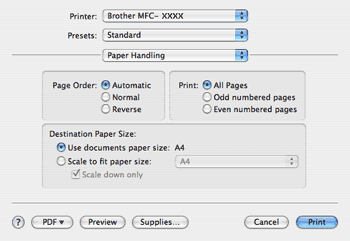
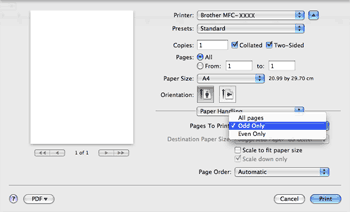
Manual duplex
Select Paper Handling.
•
(Mac OS X 10.3.9 to 10.4.x)
Choose Even numbered pages and print, and then choose Odd numbered pages and print.
Screen
•
(Mac OS X 10.5.x)
Choose Even Only and print, and then choose Odd Only and print.
Screen

Status Monitor

This reports the printer status (any errors that may happen with the printer) when printing. If you would like to turn the status monitor on, run the Status Monitor (from the Macintosh HD (Startup Disk), choose Library, Printers, Brother, Utilities).