

Home > Routine Maintenance > Calibrate Your Brother Machine


Calibrate Your Brother Machine
Calibrate your scanner only if the scanned images start to look fuzzy, the colour looks abnormal (darker than normal), or if the scanner has been stored without being used for a long time.
- (DSmobile DS-940DWe) Slide the Mode Select Switch to
 .
- Do one of the following:
- Windows
Launch
 (Brother Utilities), and then click the drop-down list and select your model name (if not already selected). Click Tools in the left navigation bar, and then click Remote Setup.
- Mac
In the Finder menu bar, click , select your model name, and then double-click the Brother Remote Setup icon.
If the Search Devices dialog box appears, select your model name and then click Connect.
- Click the Machine Info menu in the left navigation pane.
- Click the Start button in the Calibration option.
- Click OK.
- Hold the edges of the calibration sheet (supplied with the scanner) and insert it into the Feeder Slot as shown below.
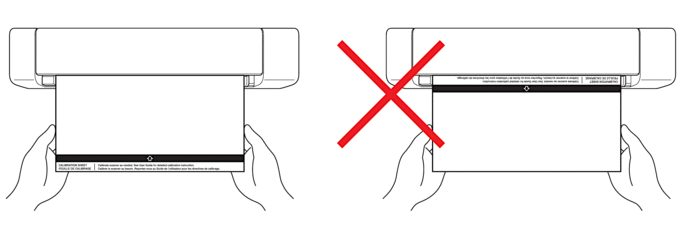
 Hold only the edges of the calibration sheet and be careful not to touch the white or black areas. Leaving marks or fingerprints on this sheet can cause errors in calibration.
- Click OK in the Remote Setup window.The scanner starts feeding the calibration sheet, and then the calibration result appears on the computer screen.
- When the Remote Setup displays a confirmation message, click OK.
If the calibration or scanning results are unsuccessful, try the following solutions:
Difficulties Cause Suggestions Vertical line appears. The environmental temperature has changed during calibration. Make sure the temperature is the same during scanner use and recalibration. The scanner may have vibrated during calibration. Place the scanner on a flat, stable surface and recalibrate. - Dust on the paper path.
- Dust on the calibration sheet.
- Clean the paper path and try to scan again.
- Clean the paper path or calibration sheet. And then Recalibrate the scanner.
Vertical band appears. - Dust or fingerprint on the paper path.
- Dust, fingerprint, or scratch on the calibration sheet.
- Clean the paper path and try to scan again.
- Clean the paper path or use a new calibration sheet. And then recalibrate the scanner.
Colour is different from normal. - An incorrect calibration sheet is used.
- The temperature is too high or too low.
- There is a problem with the computer's USB port.
- Recalibrate the scanner using the correct calibration sheet.
- Recalibrate the scanner.
- Change to other USB port, and then recalibrate the scanner.
The calibration sheet is too short. The calibration sheet has been cut or inserted incorrectly. Recalibrate the scanner using the correct calibration sheet.
Did you find the information you needed?