


| | |
| 1 | Click the  (ControlCenter2) icon in the menu bar and then select Open. (ControlCenter2) icon in the menu bar and then select Open.The ControlCenter2 window will appear. 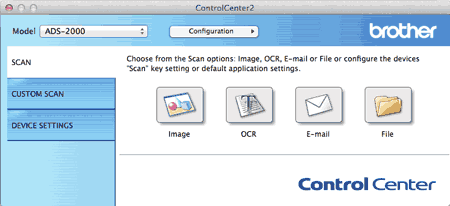  Note Note |
| 2 | While holding down the Control key click a button for the Scan-to action you want to change (Image, OCR, E-mail, or File). The Scan-to action setting dialog box will appear (the example below uses Image). |
| 3 | Click the Device Button tab. 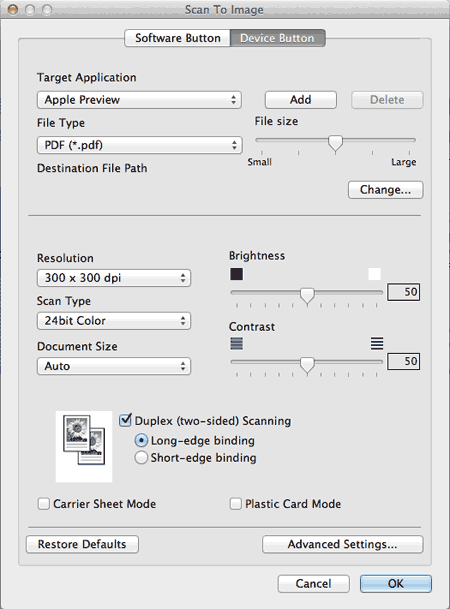 |
| 4 | Check the Carrier Sheet Mode check box. |
| 5 | Check the Duplex(two-sided) Scanning check box and then select the Long-edge binding option. Note |
| 6 | Select a 2 in 1 document size from the Document Size drop-down list. |
| 7 | Change other settings if needed (see Change Scan Settings). |
| 8 | Load the Carrier Sheet (see Loading Documents Wider than Letter Size). Note |
| 9 | Press Scan to PC. The machine starts scanning. |
| | |