| | |
| 1 | Click the  (ControlCenter4) icon in the task tray and then select Open from the menu. (ControlCenter4) icon in the task tray and then select Open from the menu.The ControlCenter4 window will appear.  Note Note |
| 2 | Click the Device Settings tab (the example below uses Home Mode). 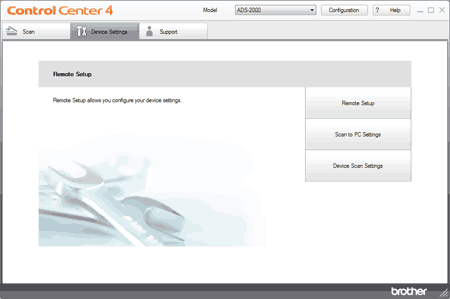 |
| 3 | Click the Device Scan Settings button. The Device Scan Settings dialog box will appear. 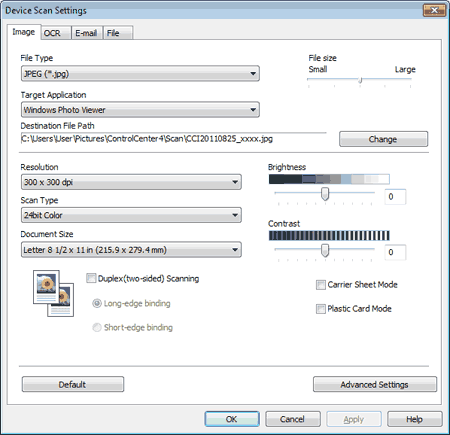 |
| 4 | Select the tab for the Scan-to action you want to change (Image, OCR, E-mail, or File). |
| 5 | Check the Plastic Card Mode check box. |
| 6 | Change other settings if needed (see Change Scan to PC Settings). |
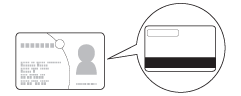
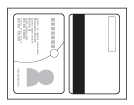
| 7 | Load a plastic card (see Loading Business Cards and Plastic Cards). Note |
| 8 | Press Scan to PC. The machine starts scanning. |
 Important Note
| | |