


| | |
 (OCR) button lets you scan a document and convert it to text. This text can be edited using your favorite word processing software.
 Note
Note| 1 | Load your document. |
| 2 | Click the  (ControlCenter4) icon in the task tray and then select Open from the menu. (ControlCenter4) icon in the task tray and then select Open from the menu.The ControlCenter4 window will appear. Note |
| 3 | Select the Scan tab. 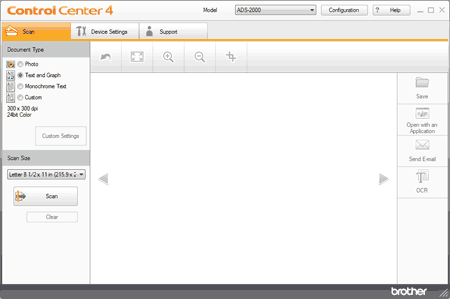 |
| 4 | Select Monochrome Text in the Document Type option. |
| 5 | Change the scan size if needed (see Change the Scan Size). |
| 6 | Click the  (Scan) button. (Scan) button.The machine starts scanning, and then the Scanning Completed dialog box will appear and display the number of scanned pages. The scanned image appears in the image viewer. Note |
| 7 | Click the left or right arrow buttons to preview each scanned document. |
| 8 | Click the (OCR) button. |
| 9 | Configure the OCR settings and click the OK button. The machine converts the scanned image into editable text, then sends it to your default word processing application. |
| | |